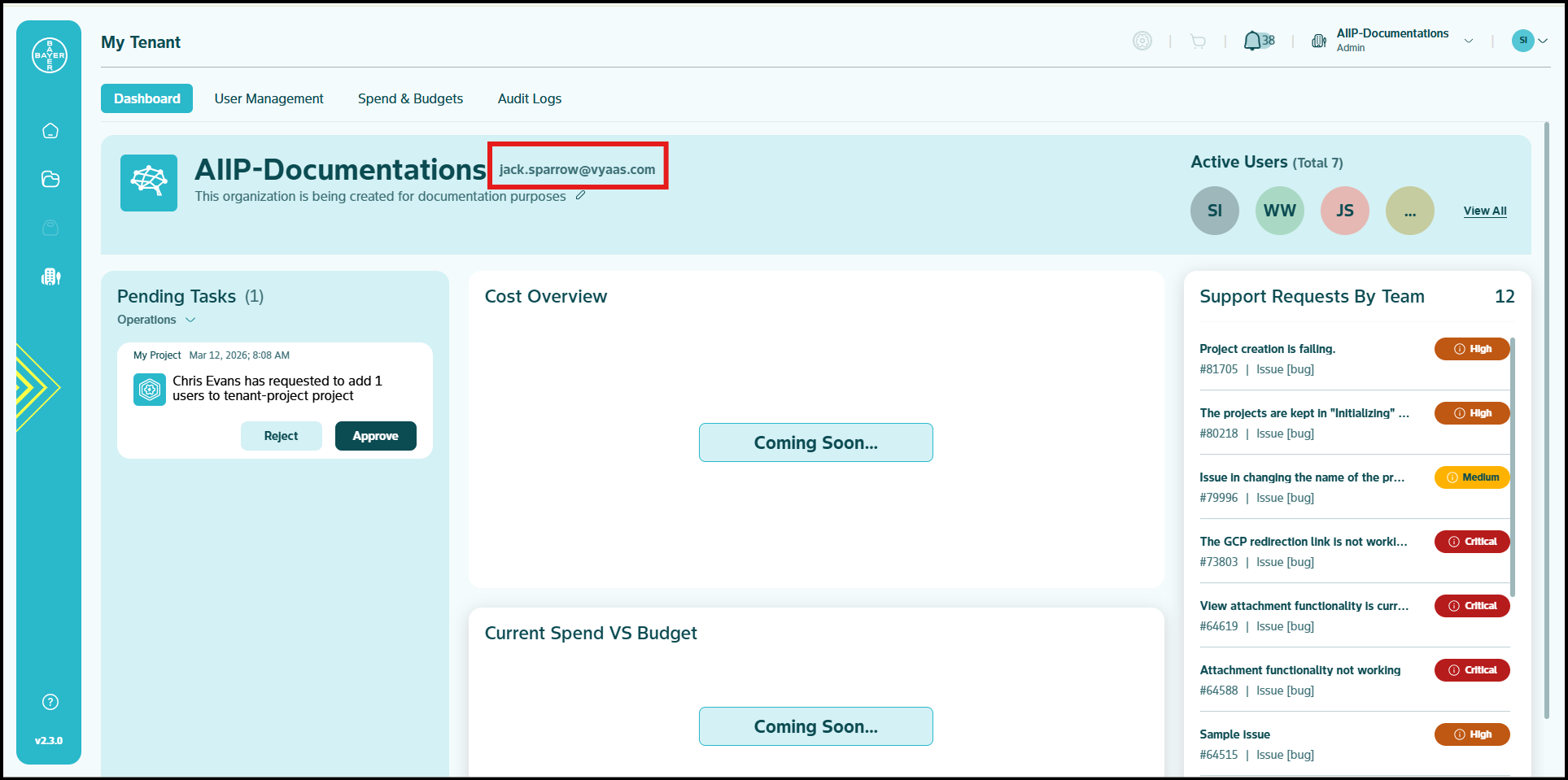
Tenant Dashboard
The Dashboard serves as your tenants's command center, delivering essential information at a glance with visual indicators of your tenants's current status.
Key Dashboard Components
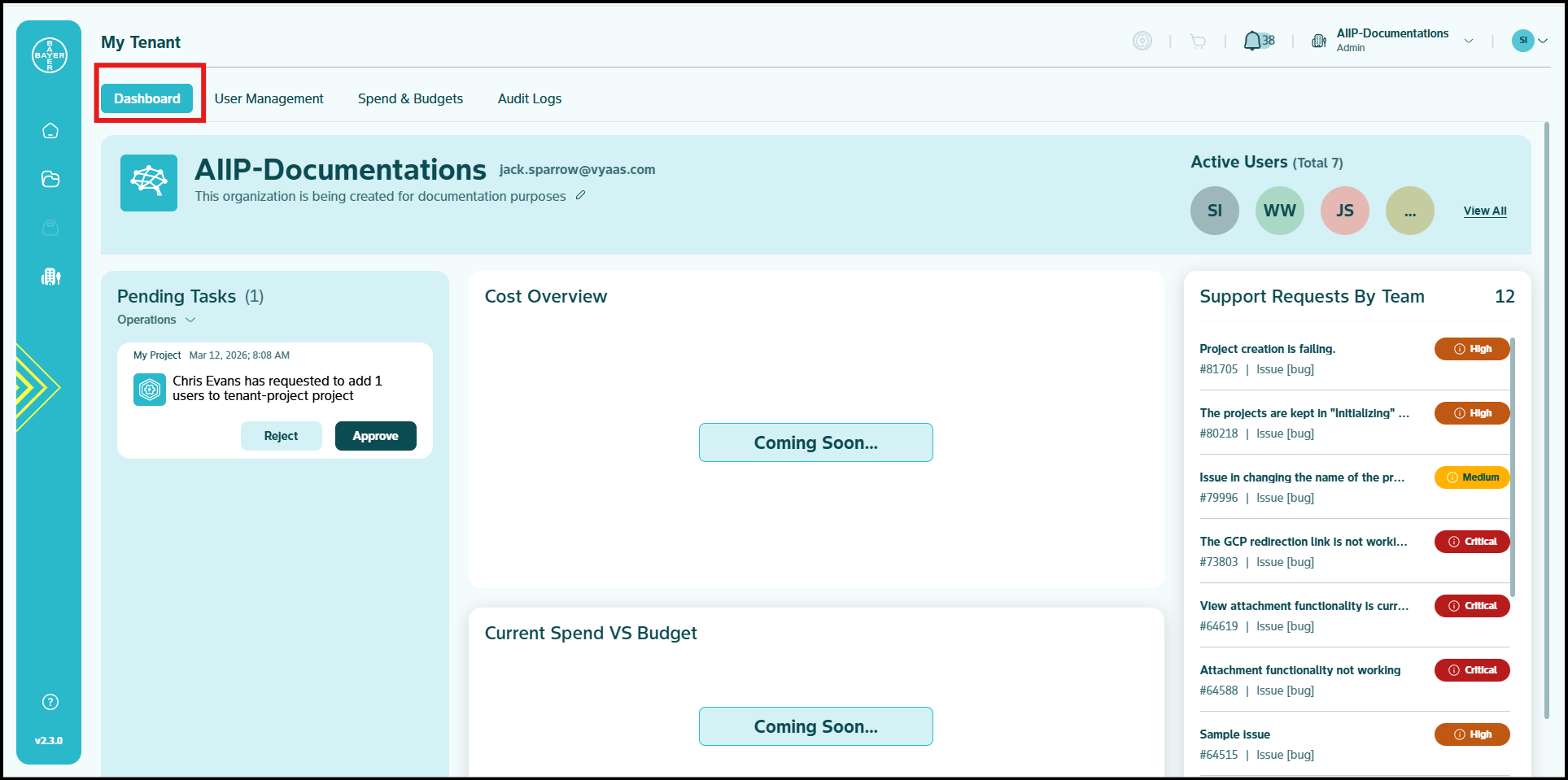
Tenant Profile
Your Tenants's profile displays key identification information including name, Tenant email ID, description, active users and logo. This area provides you with immediate recognition of your tenant environment and its core configuration.
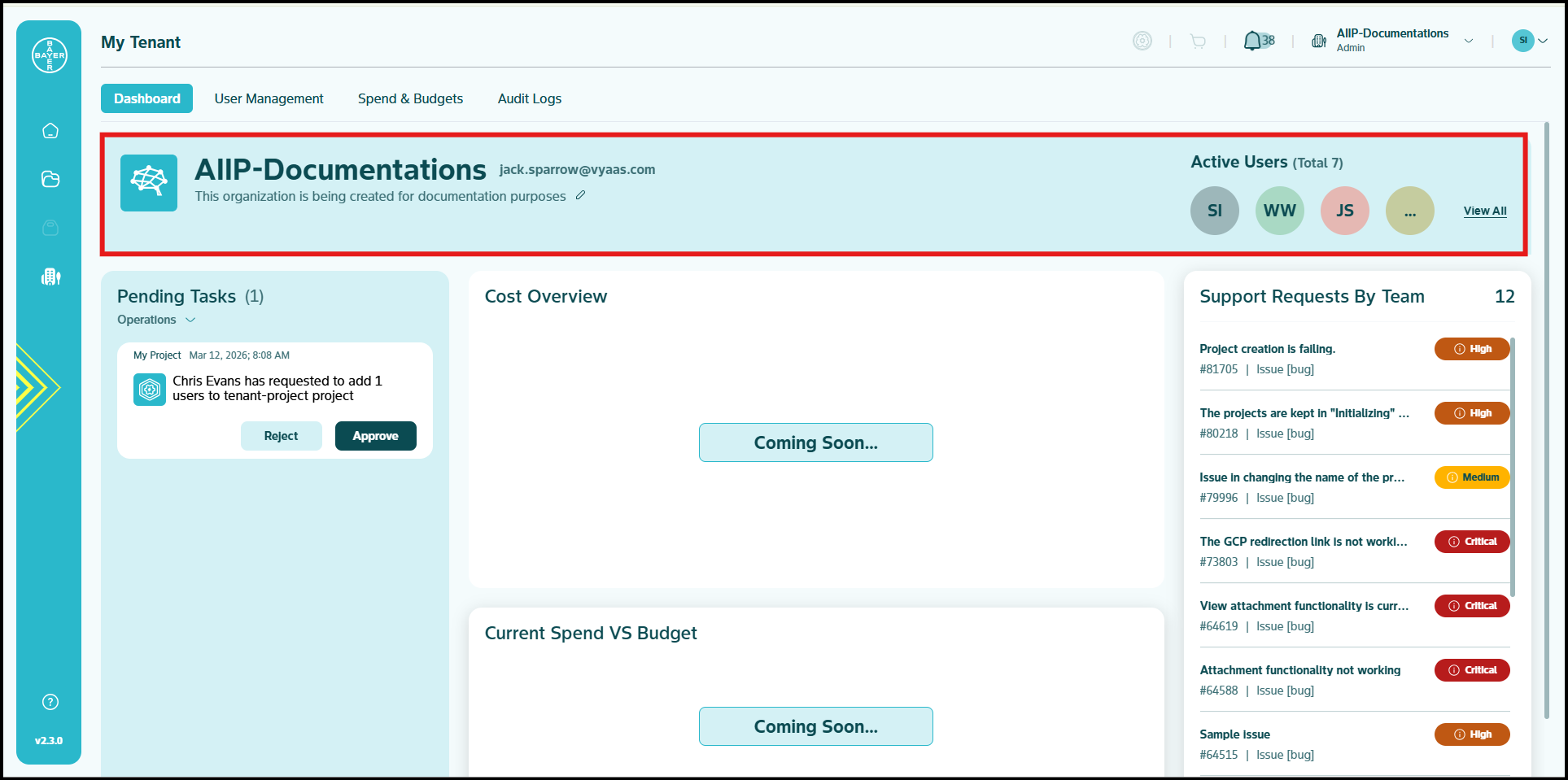
Pending Tasks
You can view actionable requests that require your attention, with details about each requester and their needs. You can use efficient approval/reject buttons for quick decisions, or select 'View all' to access your complete task history.
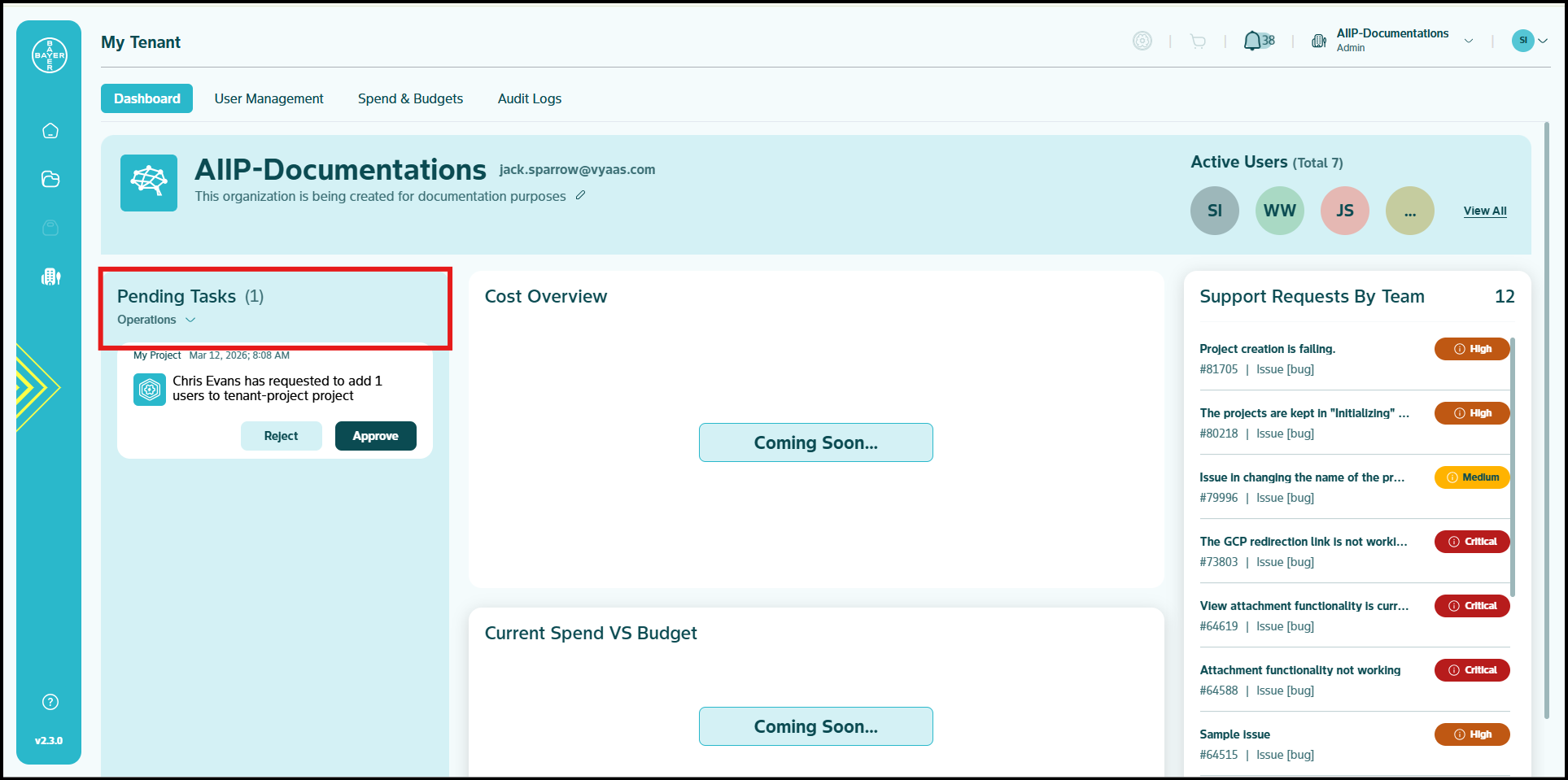
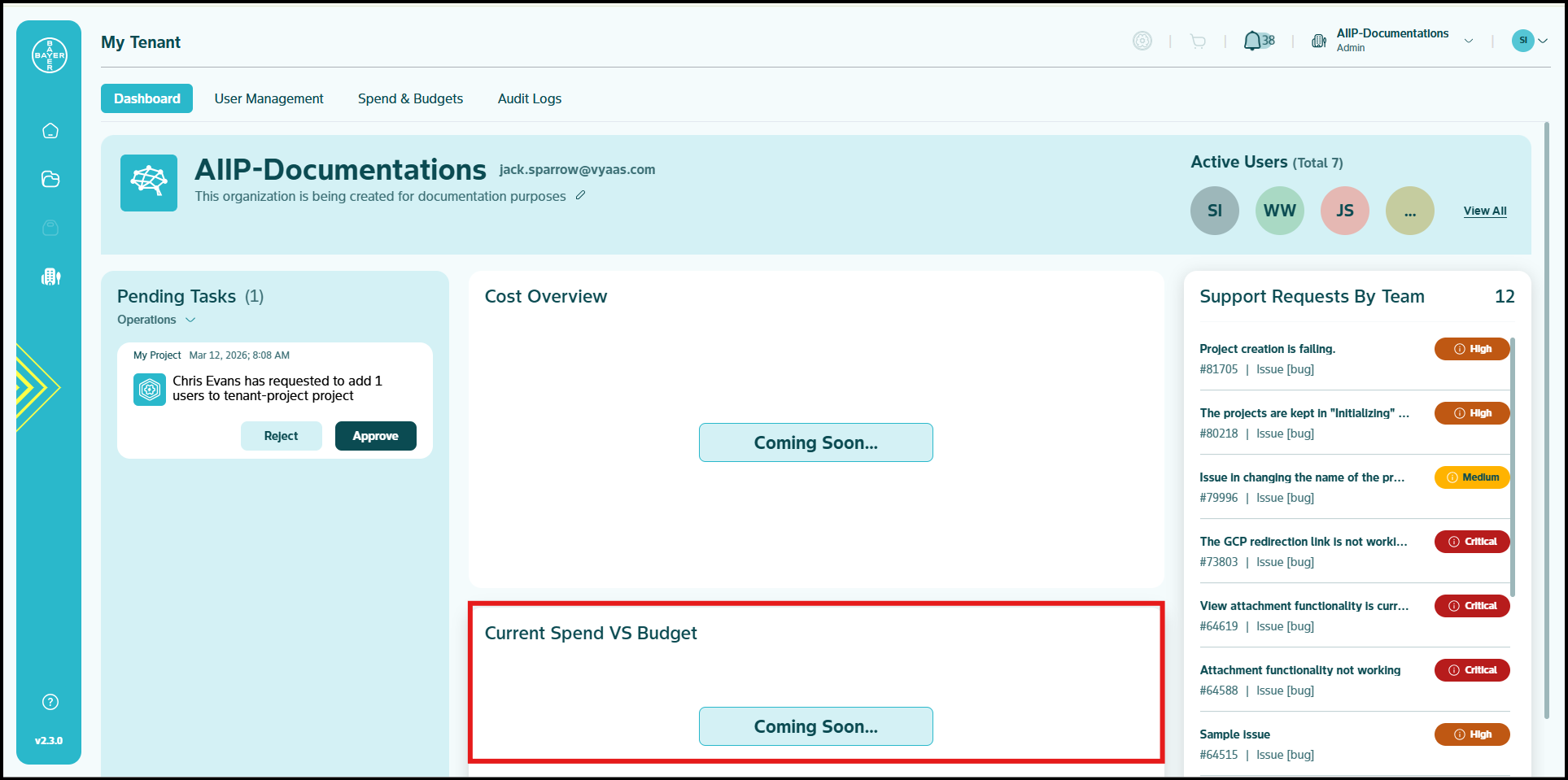
Current Spend vs Budget
You can view analytics regarding your current spends vs the allocated budget on your projects and identify actionablables that require your attention.
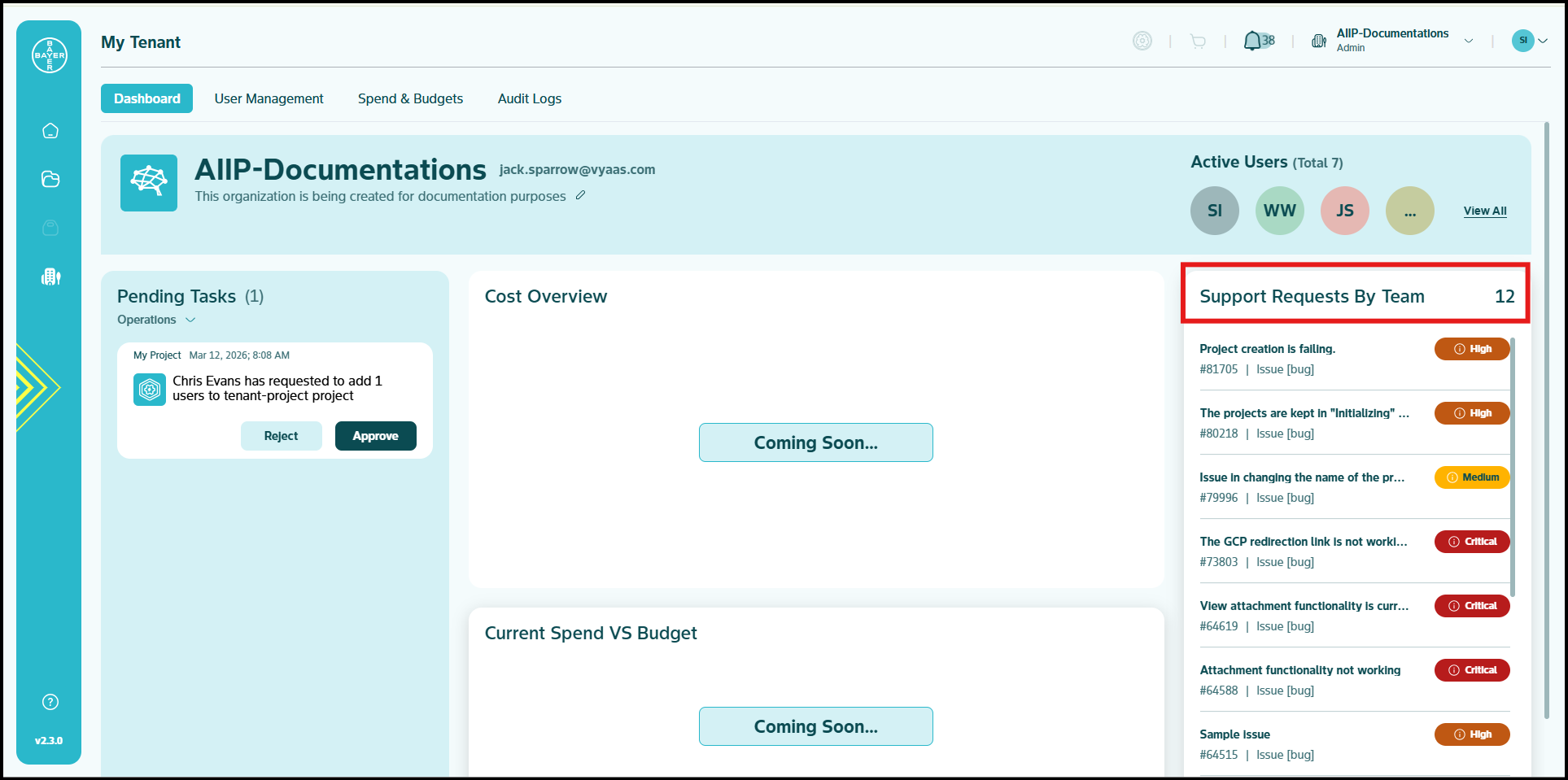
Support Requests by Team
You can view the support requests submitted by your team in this section for easy tracking and follow-up.
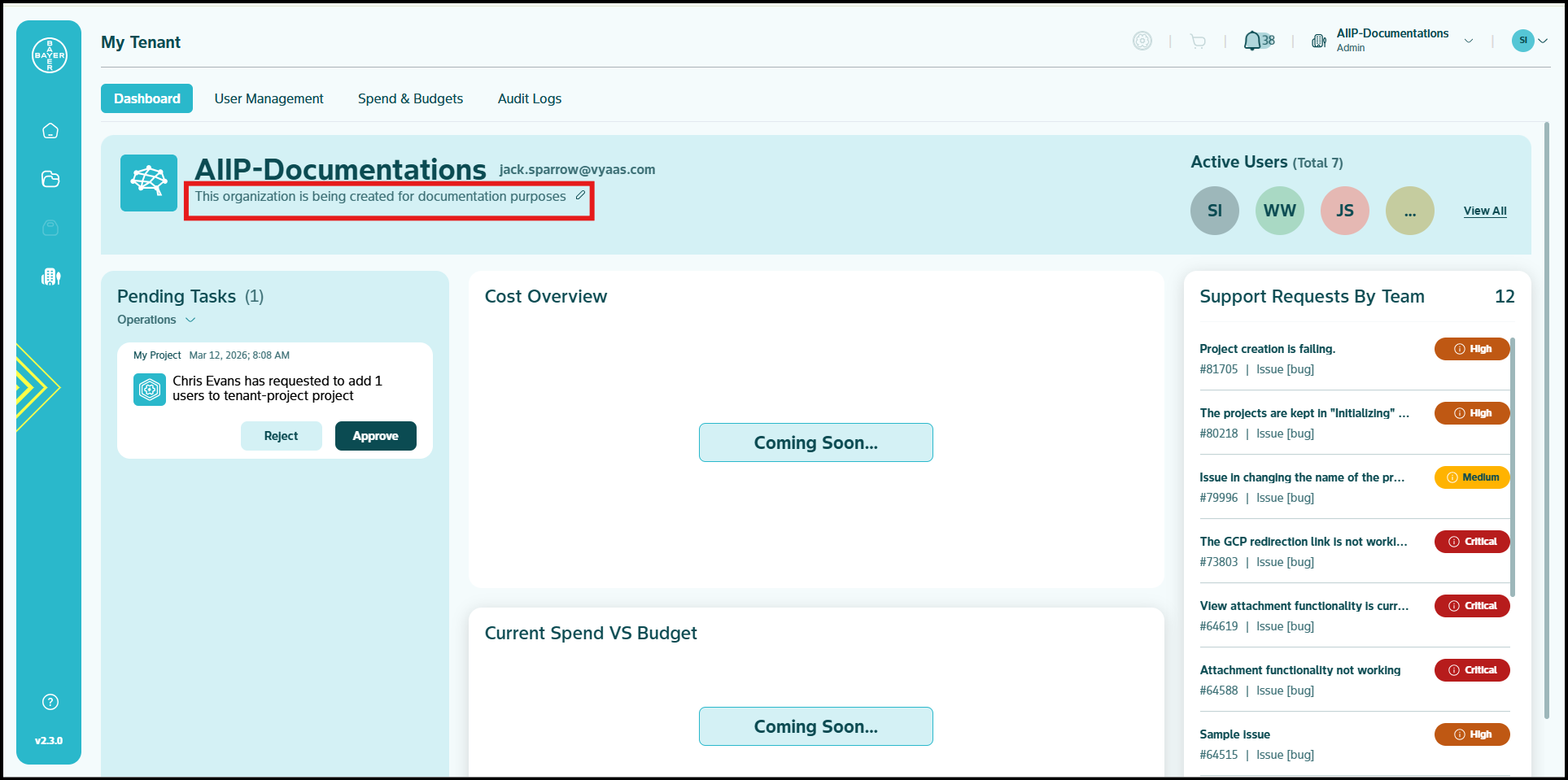
Update Tenant Description
- Click the edit icon next to the tenant description below the tenant name.
- Type in the new description and confirm by clicking the checkmark.
- Your tenant description will be updated instantly.
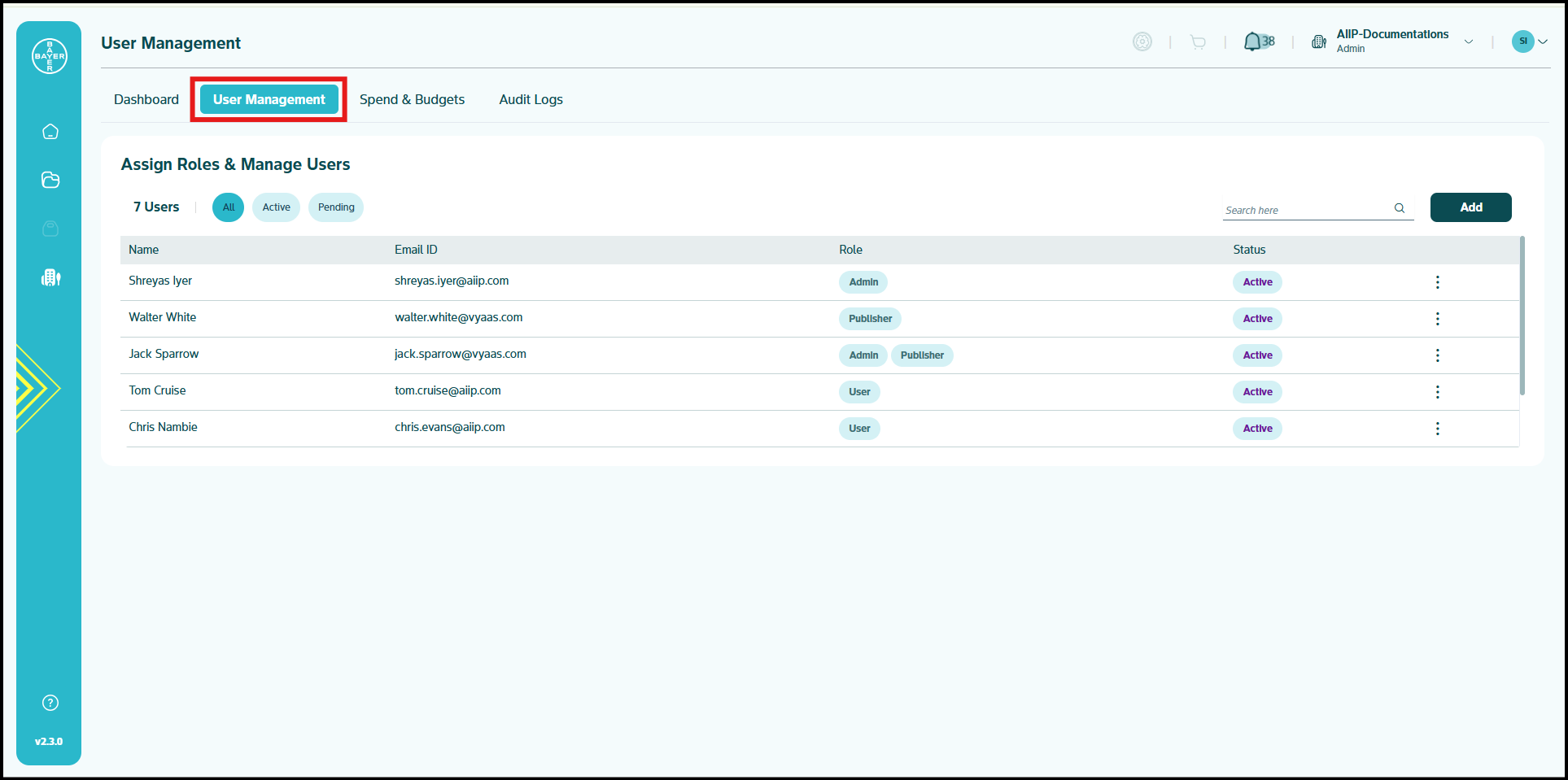
Update Tenant Contact Email
The Tenant Contact Email is automatically updated based on the designated Tenant Admin. To change this email:
-
Navigate to the User Management tab.
-
To assign a new Tenant Admin: Add the new user with an Admin role, ensuring they are the only Tenant Admin.
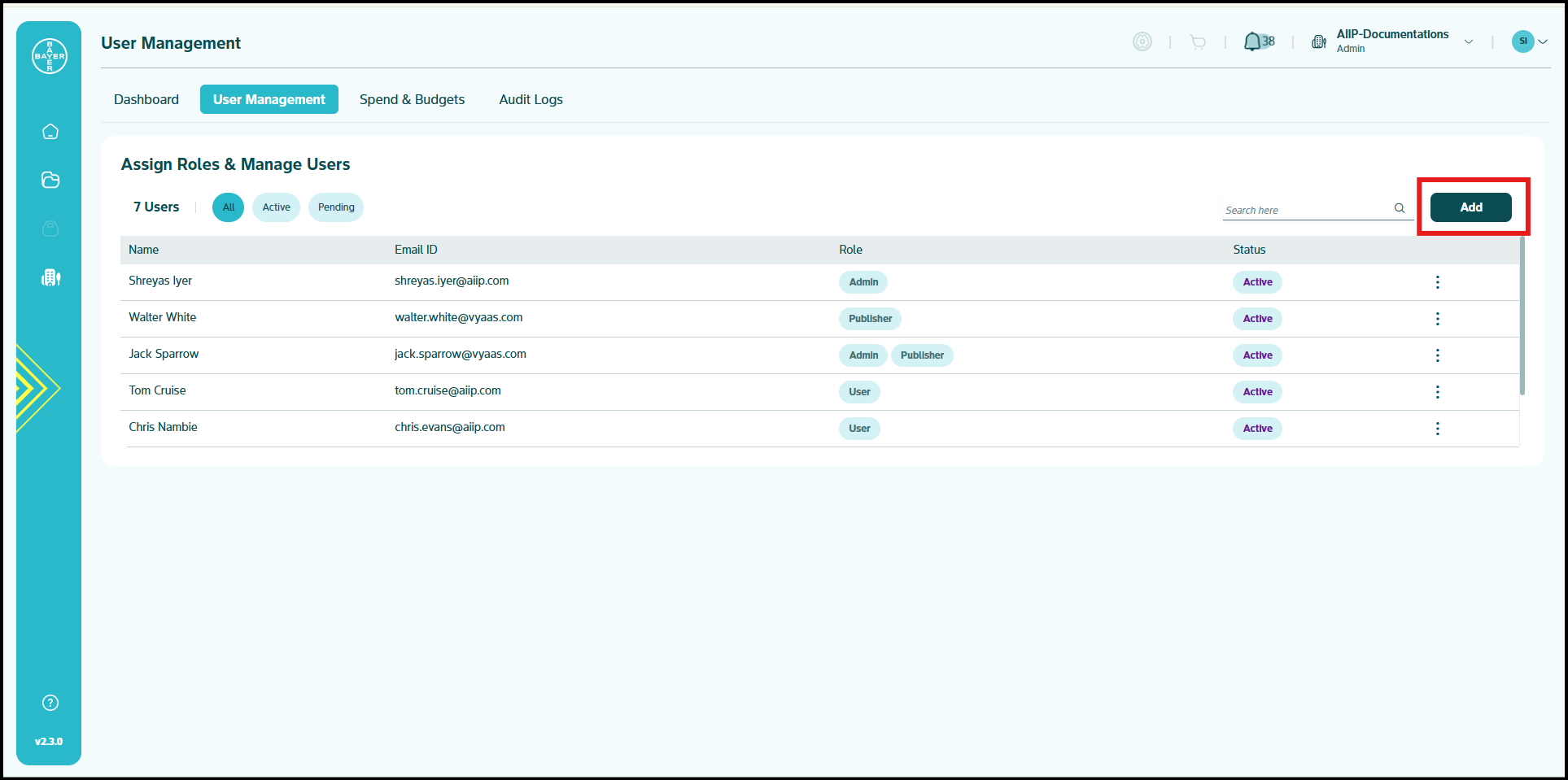
-
To modify an existing user: Change their role to Admin, ensuring they are the only Tenant Admin.
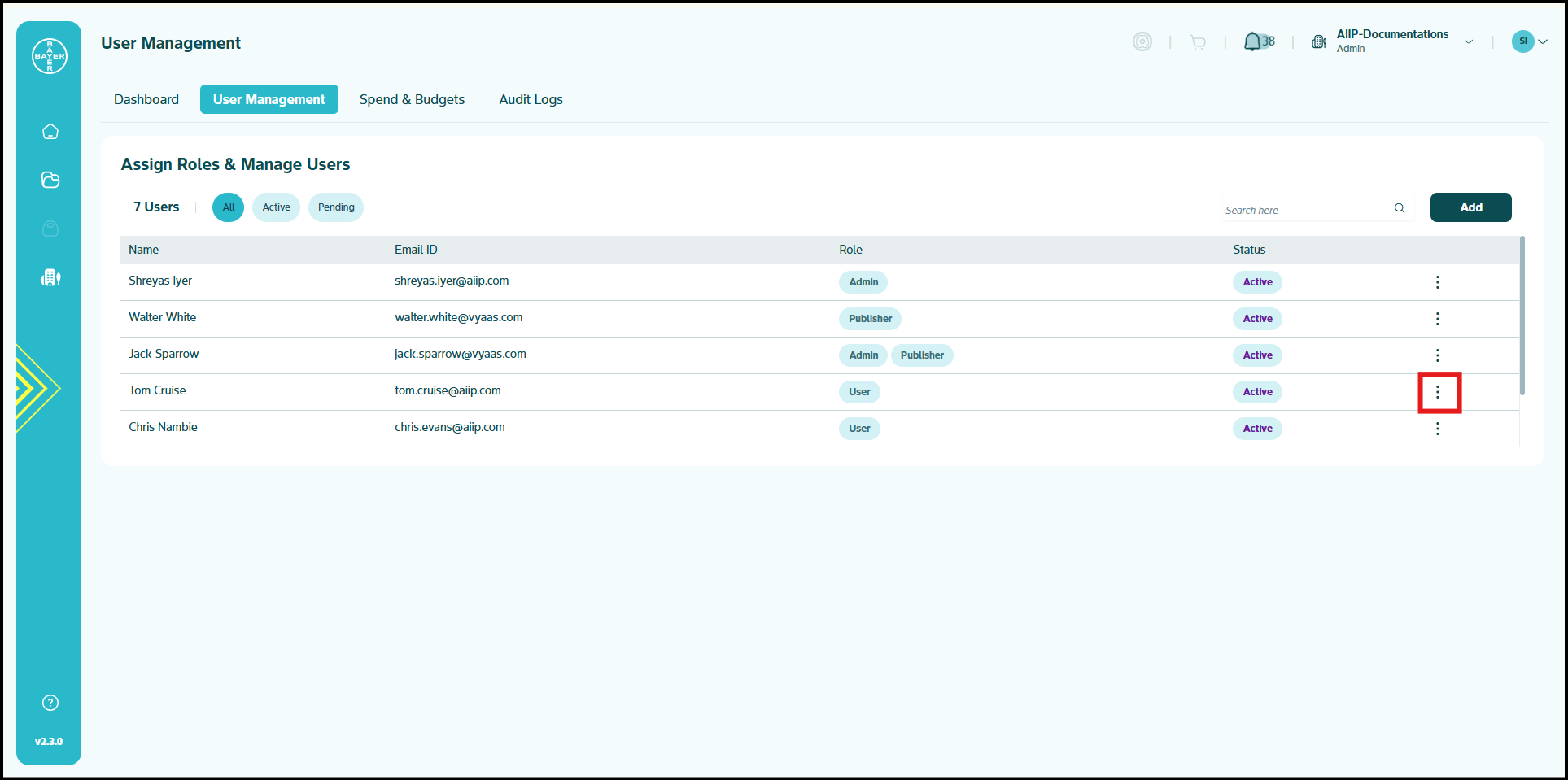
-
Once the designated user is the sole Tenant Admin, the Tenant Contact Email displayed on the Dashboard will automatically reflect the email address of this Tenant Admin.