Payment Methods for Marketplace Purchases
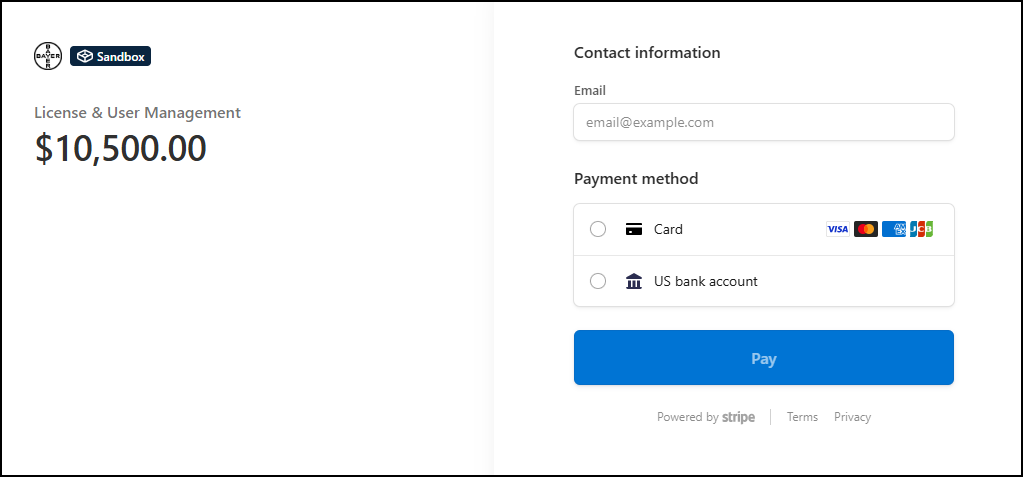
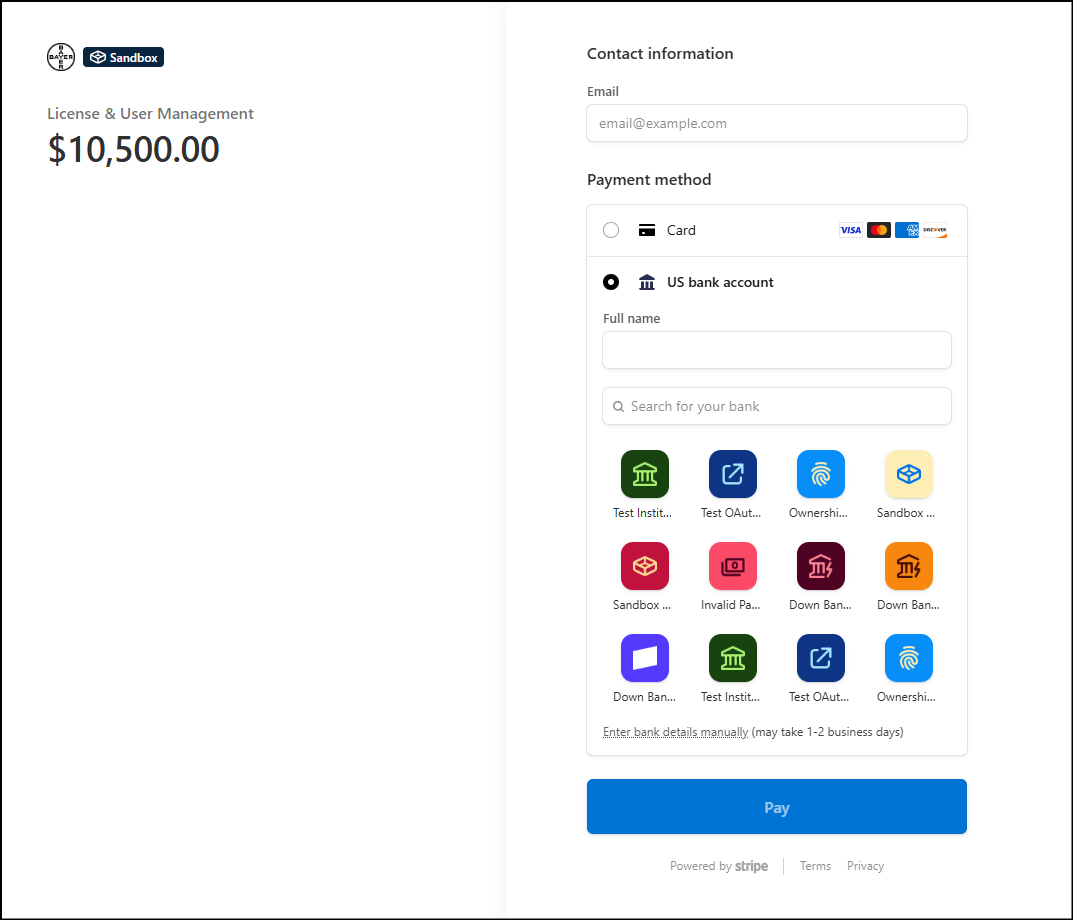
This document outlines the available payment methods for marketplace purchases, guiding you through the process once you've added products to your cart and clicked "Pay Now." You will be redirected to a secure Stripe-hosted payment page, which will display your total payable amount and offer various payment options.
Amount Summary
At the top of the Stripe-hosted page, you'll see:
- Order Total: The final amount, including taxes, shipping, and any applicable discounts.
- Currency: The currency will be displayed in the appropriate format (e.g., $ for USD).
You will need to enter your email address under the Contact Information section.
Payment Method Selection
You can choose between two primary payment methods:
- Card Payment
- Bank Transfer
Card Payment
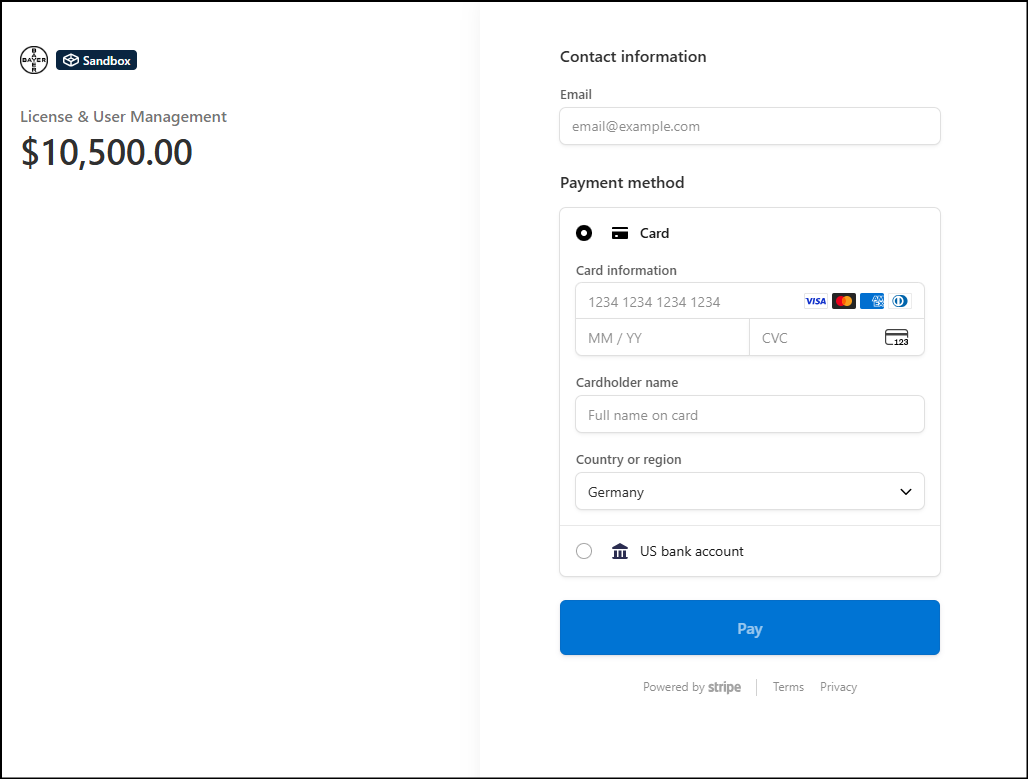
If you select Card Payment, the following fields will appear:
| Field Name | Description |
|---|---|
| Card Number: | A 16-digit number printed on the front of your card. |
| Expiry Date: | Format: MM/YY. Indicates when the card expires. |
| CVV / CVC: | A 3-digit (Visa/Mastercard) or 4-digit (Amex) security code. |
| Cardholder Name: | Your full name as printed on the card. |
| Country or region: | The name of your Country or Region. |
Once you fill in your card details and click Pay:
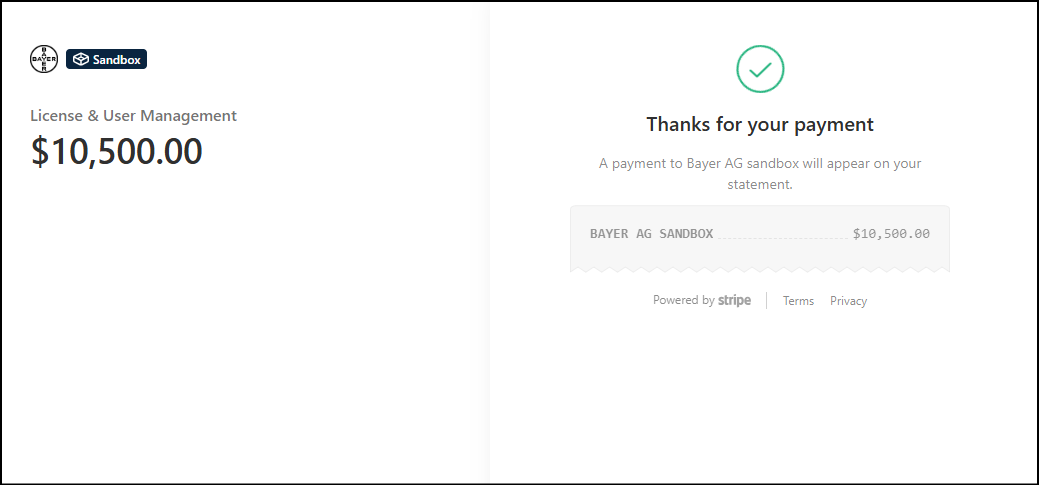
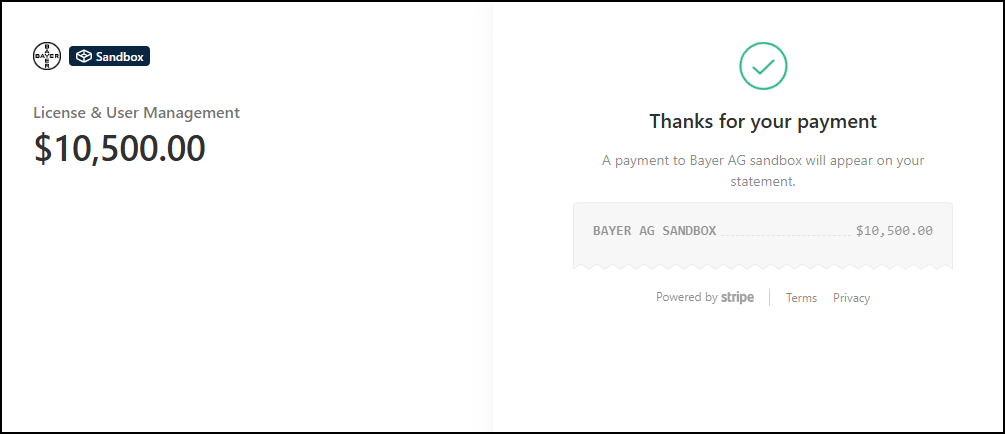
- If successful: You will see a confirmation message with an order summary.
- If failed: You will see an error message (e.g., insufficient funds, expired card) and be prompted to retry.
Bank Transfer
If you select Bank Transfer as your payment method, the following steps will occur:
Initial Bank Transfer Setup
- Full Name: You will be prompted to enter your full legal name. This is required to initiate the bank account linking process and ensure compliance with banking regulations.
- Bank Selection: You can either:
- Search for your bank from a list of supported institutions, or
- Enter bank details manually if your bank is not listed.
Consent to Connect Bank Account
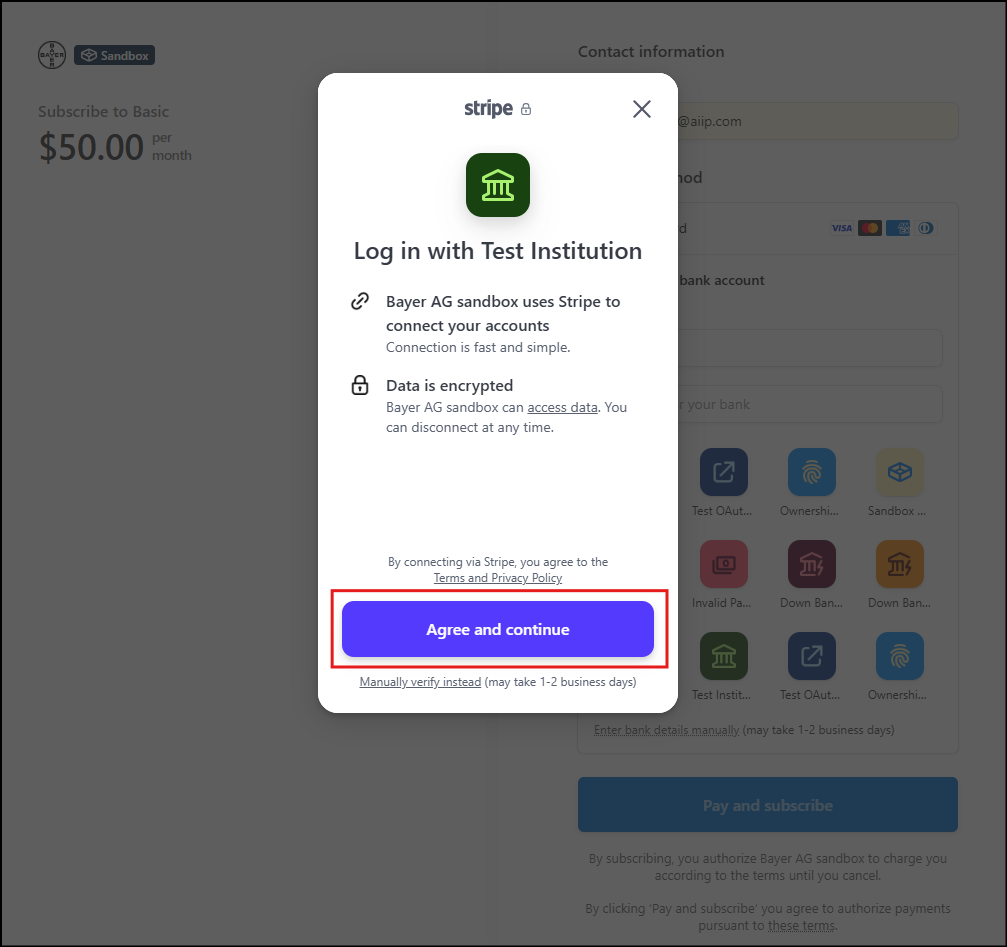
Once a bank is selected, you will be redirected to a secure consent screen where you must:
- Review the terms and data access permissions.
- Click Agree and Continue to authorize Stripe to initiate a secure connection with your bank.
Bank Authentication
- You will be redirected to your bank's login portal.
- You must enter your bank credentials (e.g., username and password or OTP) to authenticate.
- Important: This step is securely handled by your bank, and Stripe does not store or access these credentials.
Account Selection and Connection
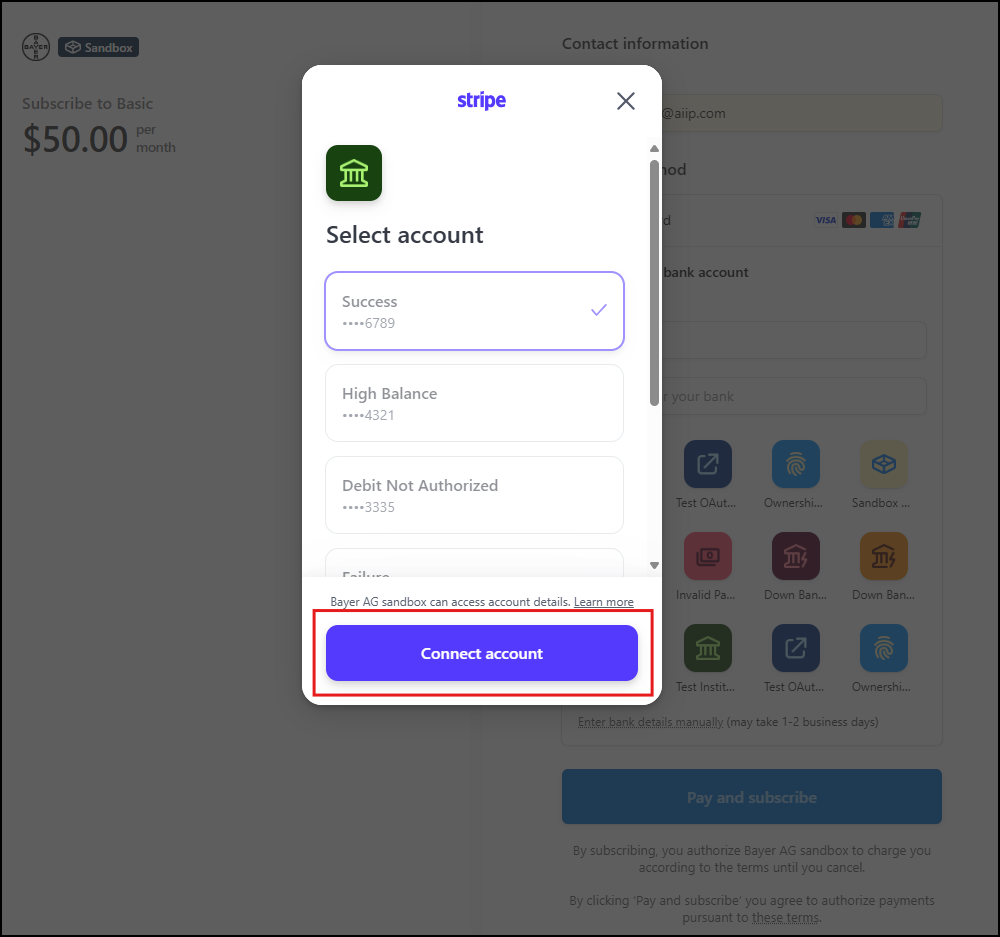
- After successful authentication, you will be shown a list of your eligible bank accounts.
- Select the account you wish to use for the payment.
- Then, click Connect Account to authorize the payment source.
Confirmation and Return to Checkout
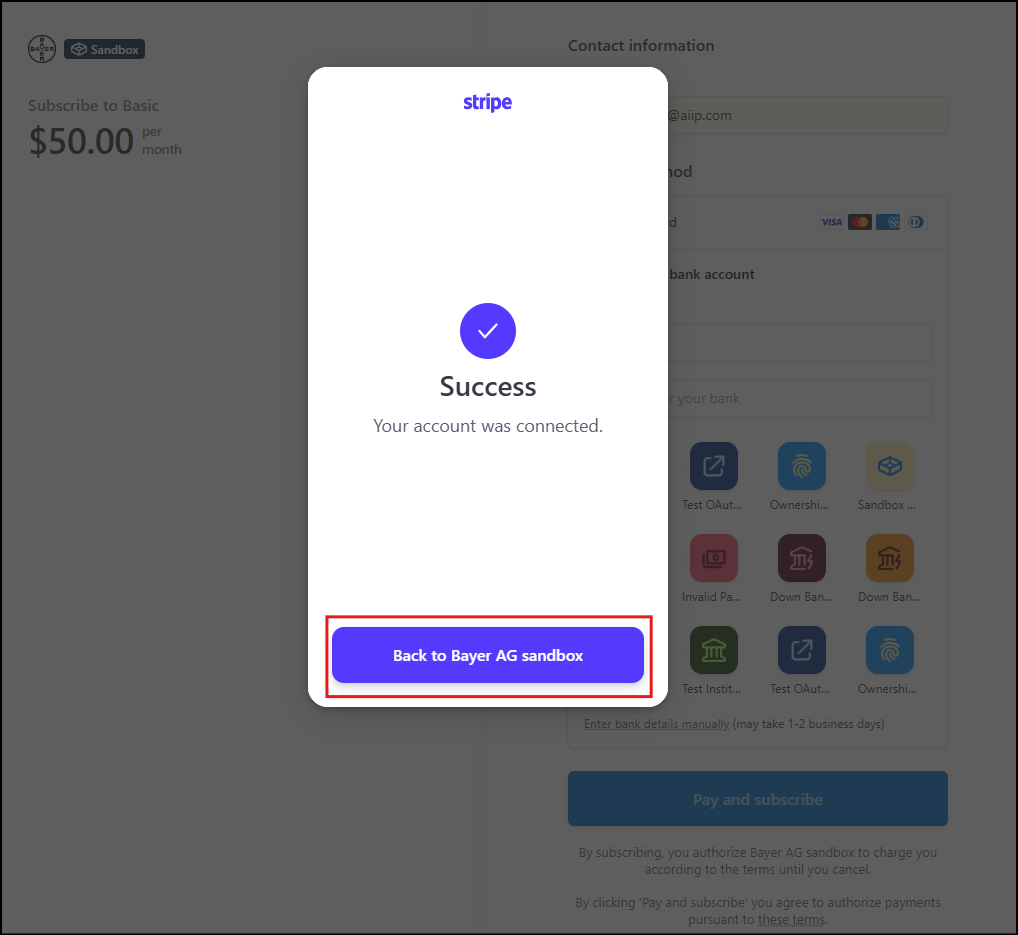
- Upon successful connection, Stripe will display a "Success" message.
- Click Back to Bayer (or the relevant merchant name) to return to the Stripe-hosted checkout page.
Final Payment Execution
- Back on the checkout page, under "Bank Account," the status will now show "Success."
- Click Pay to finalize the transaction.
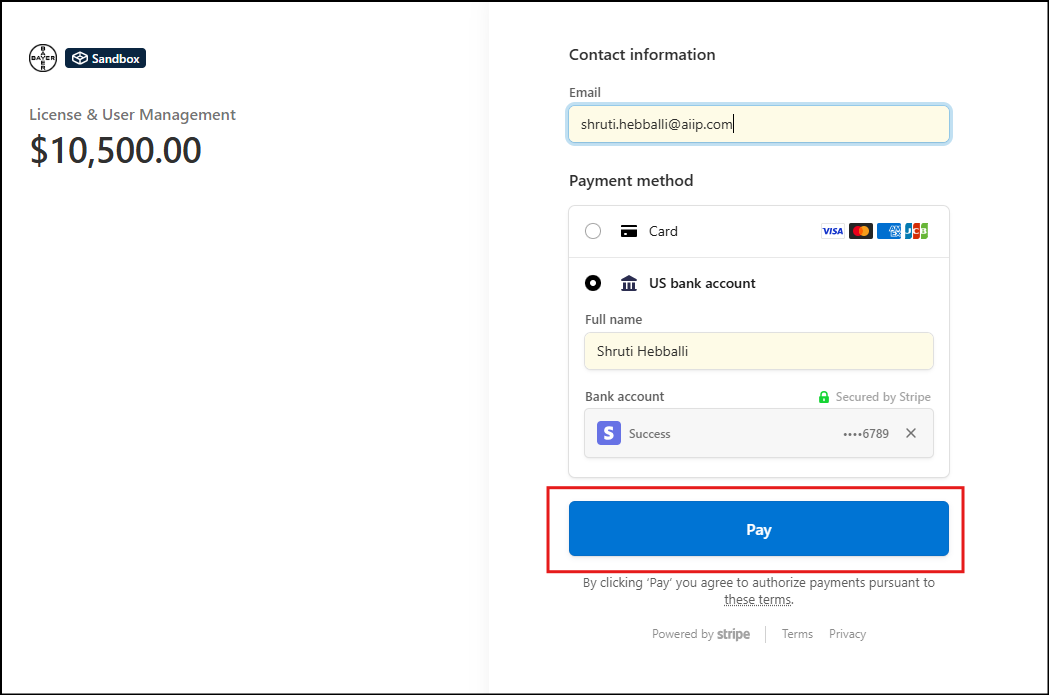
Stripe will process the payment and display a confirmation screen upon success.