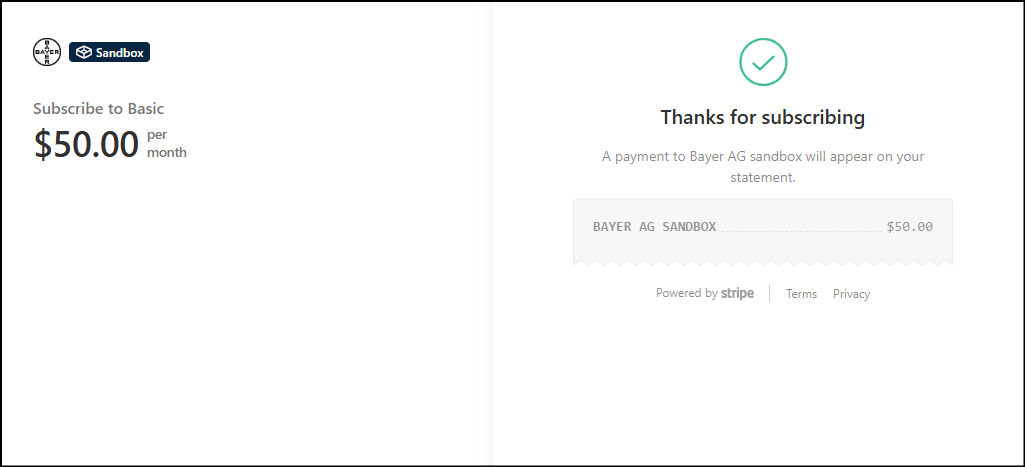
Managing Your Subscription Payments
This document provides a comprehensive guide to managing your subscription payments on the AIIP platform. It details the step-by-step process of subscribing to a plan, from choosing your desired subscription level to completing the payment via either card or bank transfer. Follow these instructions to successfully subscribe and gain access to AI Innovation platform(AIIP) features.
Choose Your Plan
- Users navigate to the AIIP and select their desired subscription plan from Basic, Advanced, Enterprise or publisher.
- Users click on the Select button for their chosen plan to begin the checkout process.
Redirect to Stripe Checkout
- Users are redirected to a Stripe-hosted checkout page.
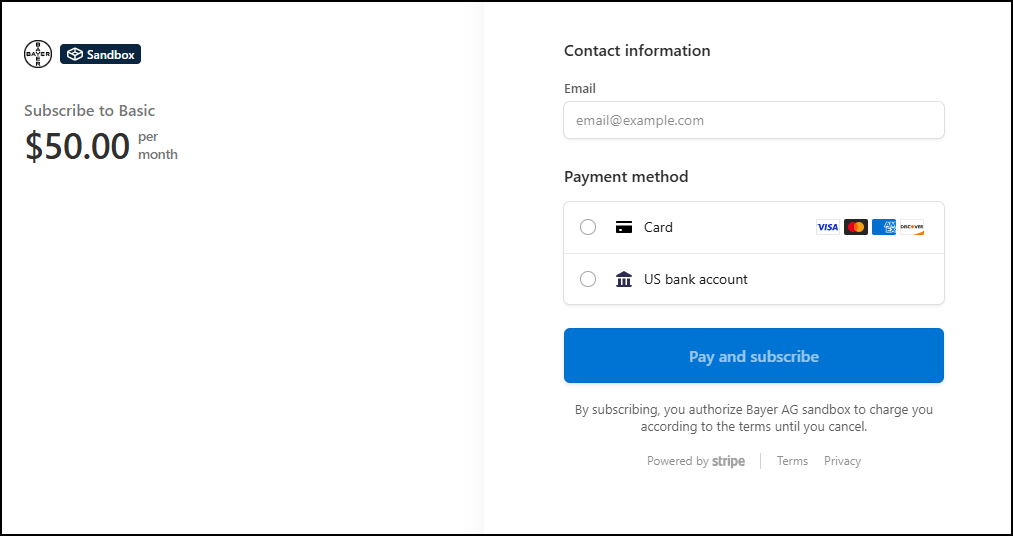
Amount Summary
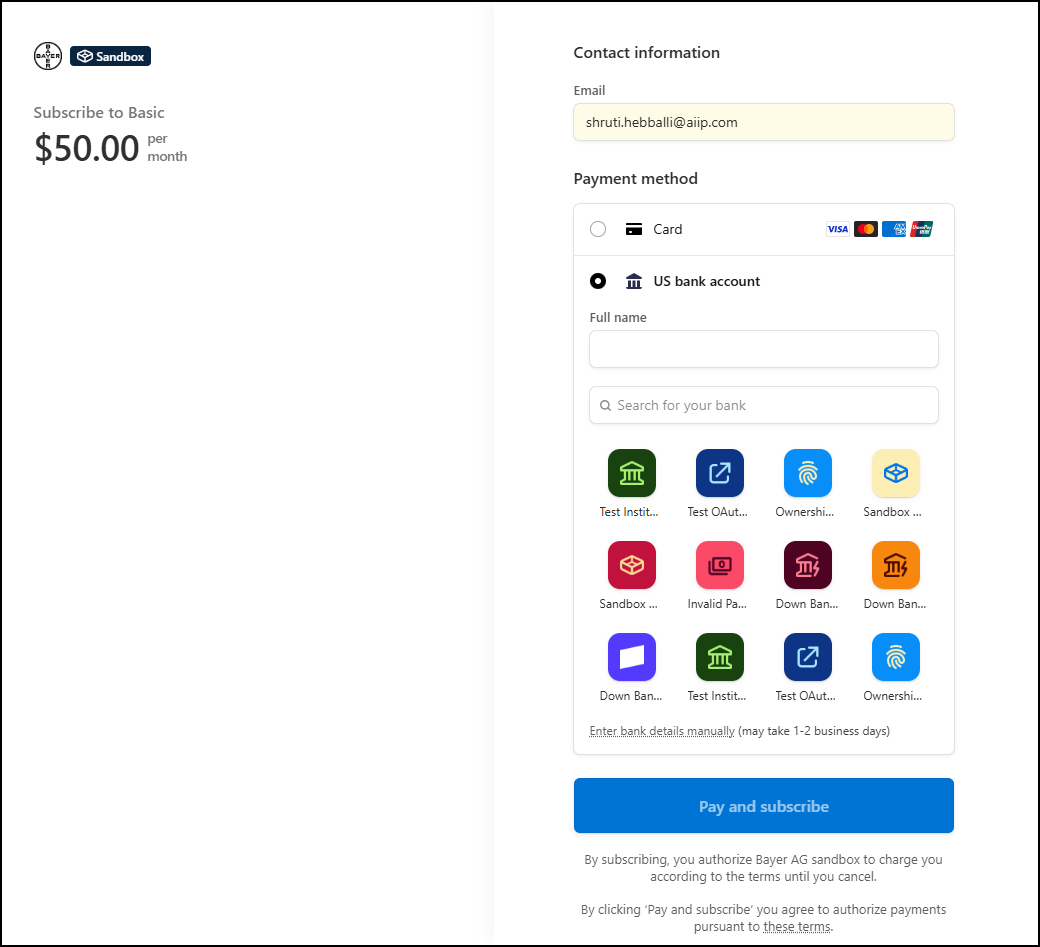
At the top of the Stripe-hosted page, users will see:
- Subscription Total: The final amount including applicable taxes and discounts.
- Currency: Displayed in the appropriate format (e.g., $ for USD).
Users must provide their email address under the Contact Information section. This email will be used to send the subscription confirmation and future billing receipts.
Select a Payment Method
Users can choose between:
- Card Payment
- Bank Transfer
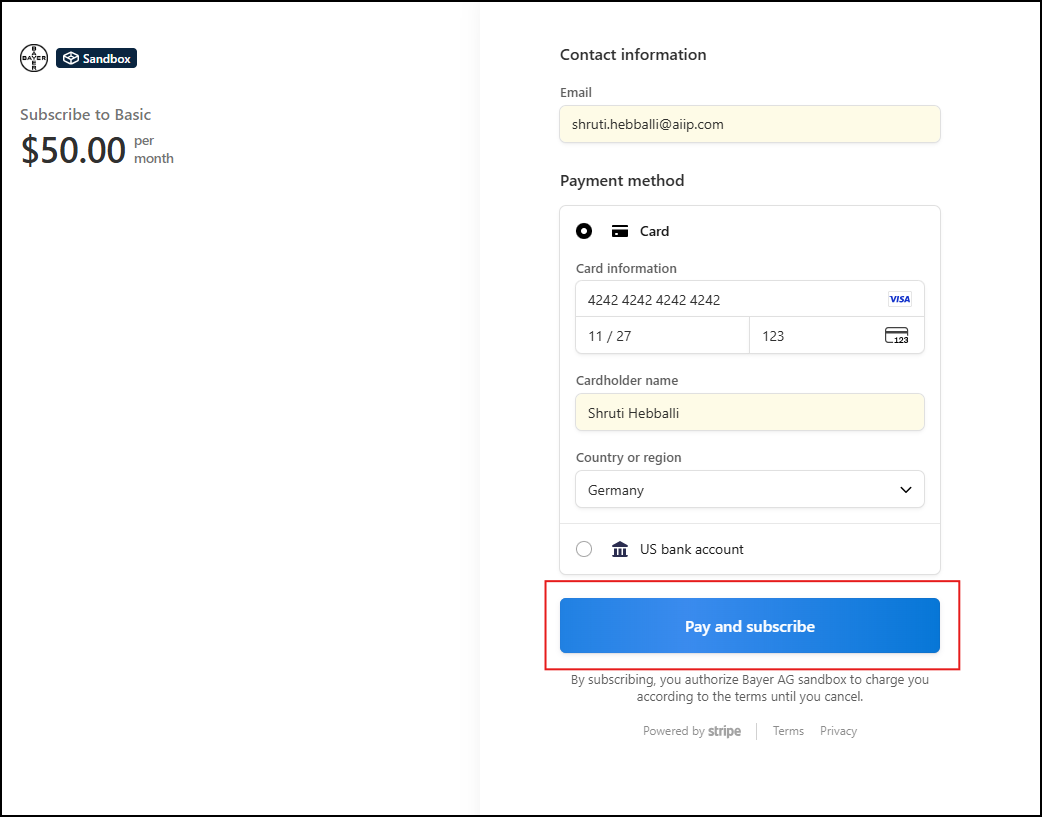
Card Payment Flow
When users select Card Payment, the following fields appear:
| Field Name | Description |
|---|---|
| Card Number | A 16-digit number printed on the front of the card |
| Expiry Date | Format: MM/YY. Indicates when the card expires |
| CVV / CVC | A 3-digit (Visa/Mastercard) or 4-digit (Amex) security code |
| Name on Card | Full name as printed on the card |
| Country or Region | Name of the billing country or region |
After entering card details, users click Pay and Subscribe to complete the transaction.
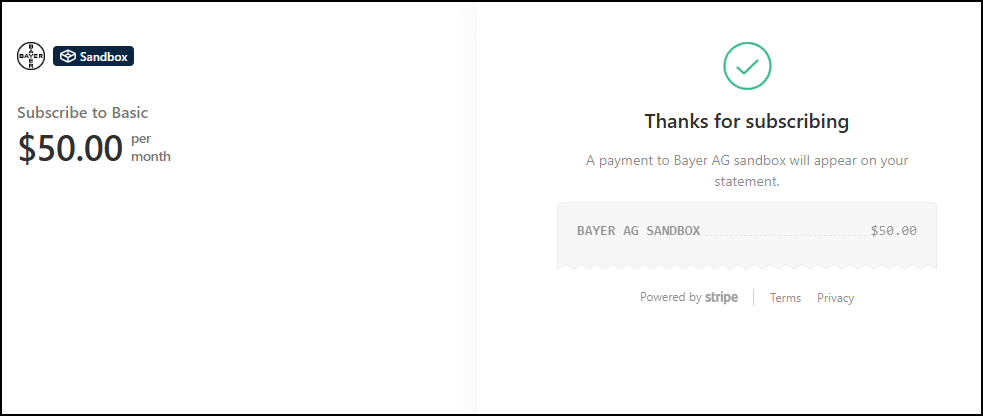
Confirmation Screen
- If successful: Users see a confirmation message with the subscription summary.
- If failed: An error message appears (e.g., expired card, insufficient funds), prompting users to retry.
Bank Transfer Flow
If users choose Bank Transfer, they follow these steps:
Initial Setup
- Full Name: Enter legal name to initiate bank account linking.
- Bank Selection:
- Search for the bank from the supported list, or
- Enter bank details manually if the bank isn't listed.
Consent to Connect
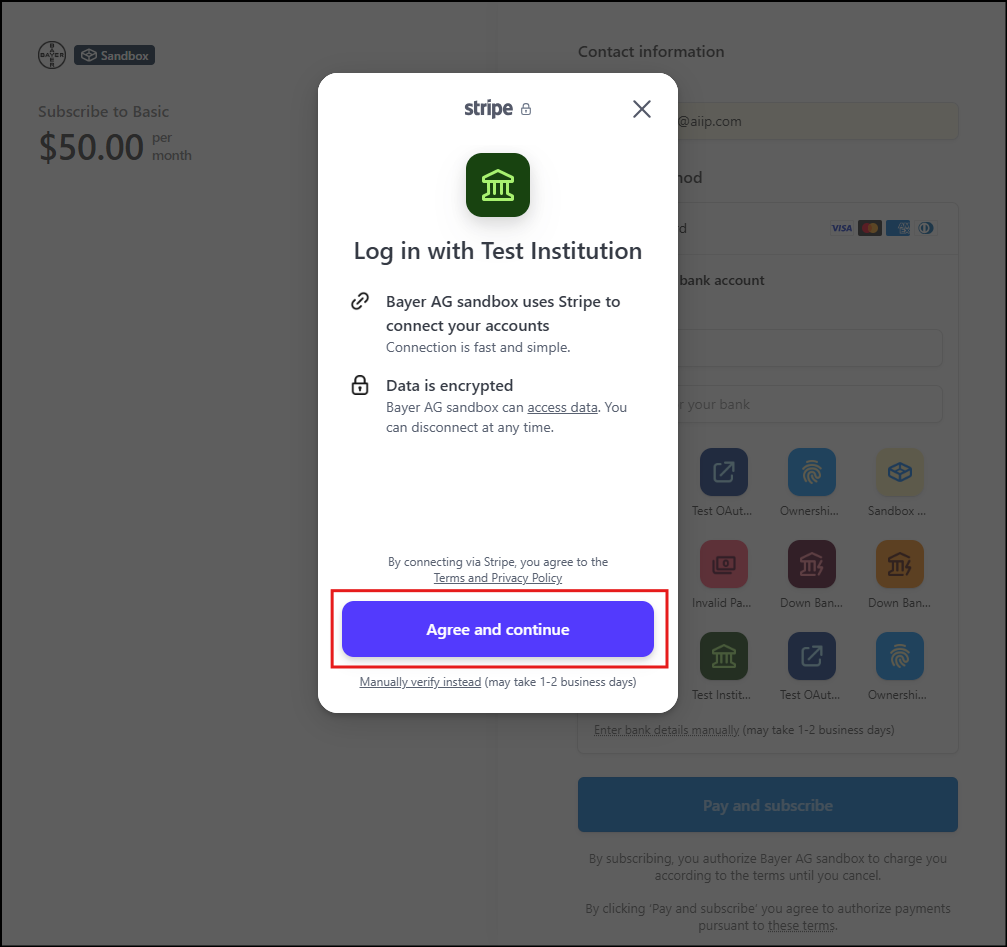
- Users are redirected to a secure consent screen.
- Review terms and data access permissions.
- Click Agree and Continue to authorize Stripe to connect with the bank.
Bank Authentication
- Users are redirected to the bank's login portal.
- Enter credentials (e.g., username/password or OTP).
- This step is securely handled by the bank; Stripe does not store these credentials.
Account Selection
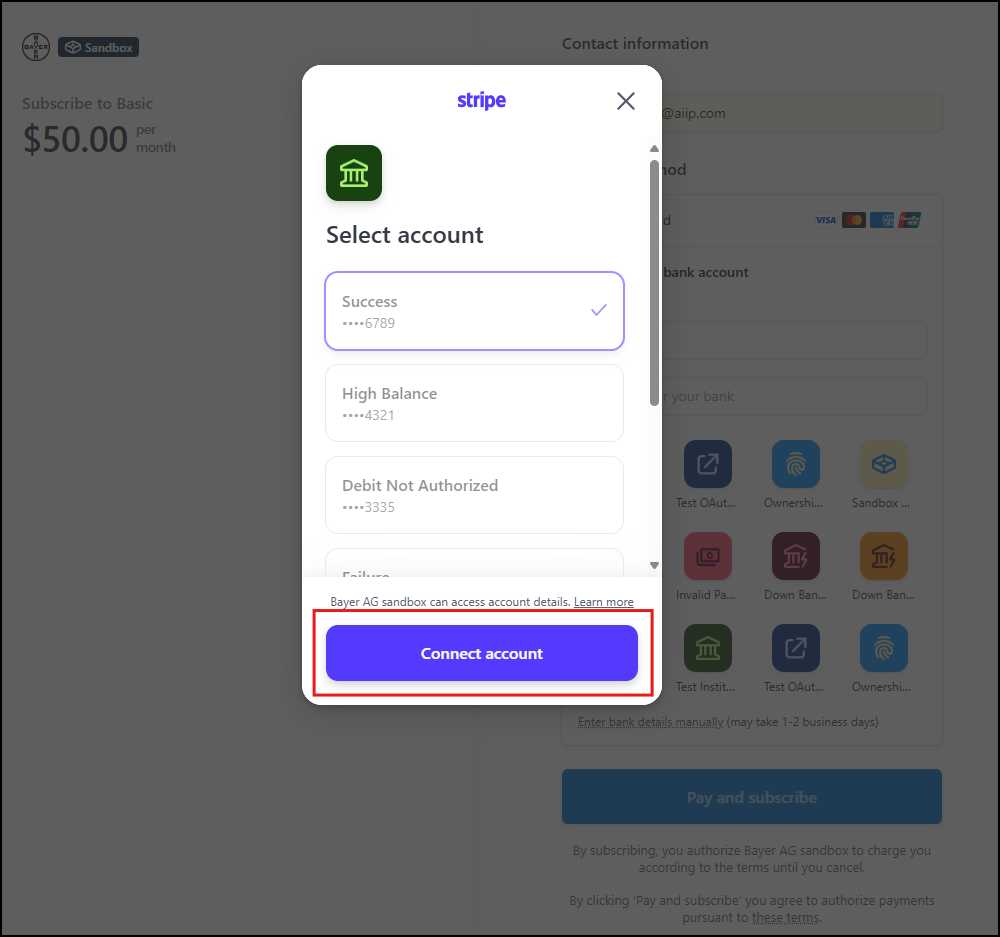
- After authentication, users select the bank account to use.
- Click Connect Account to authorize the payment source.
Confirmation and Return
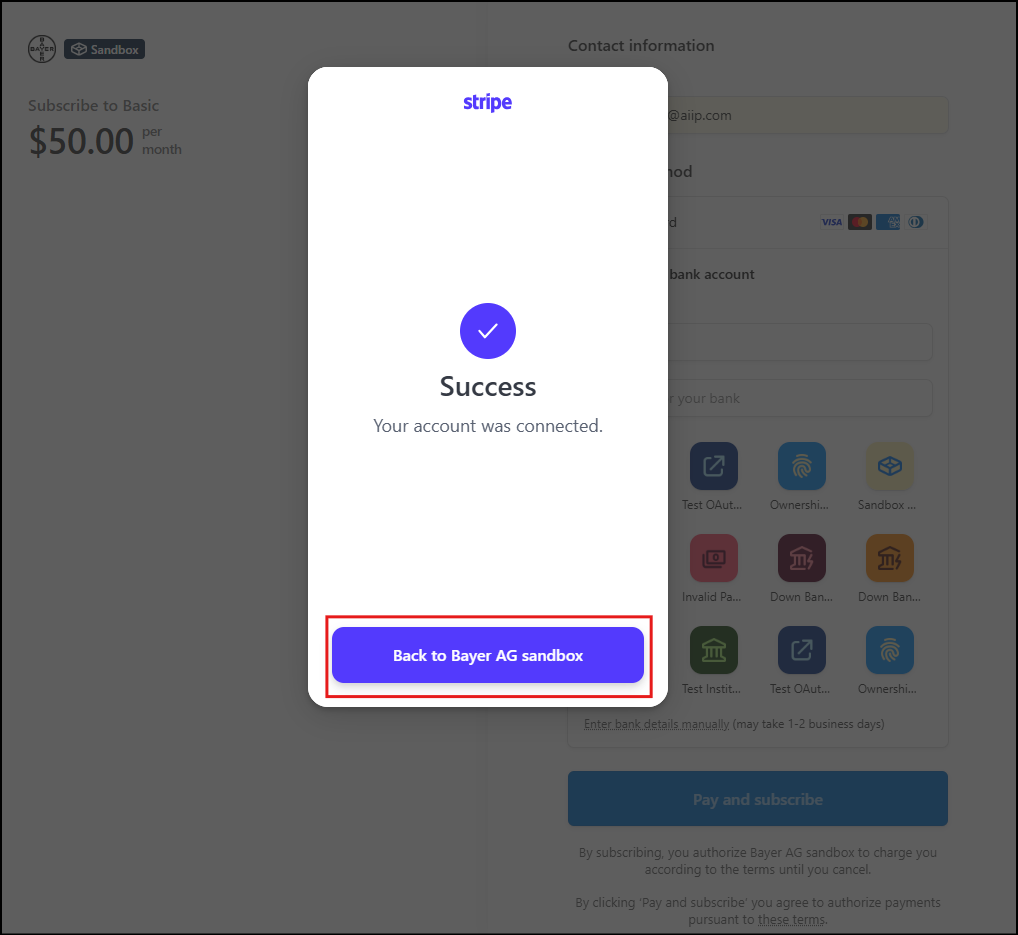
- Stripe displays a Success message.
- Users click Back to Bayer (or platform name) to return to the checkout page.
Final Subscription Execution
- Back on the Stripe checkout page, the Bank Account status will show "Success".
- Users click Pay and Subscribe to finalize the subscription.
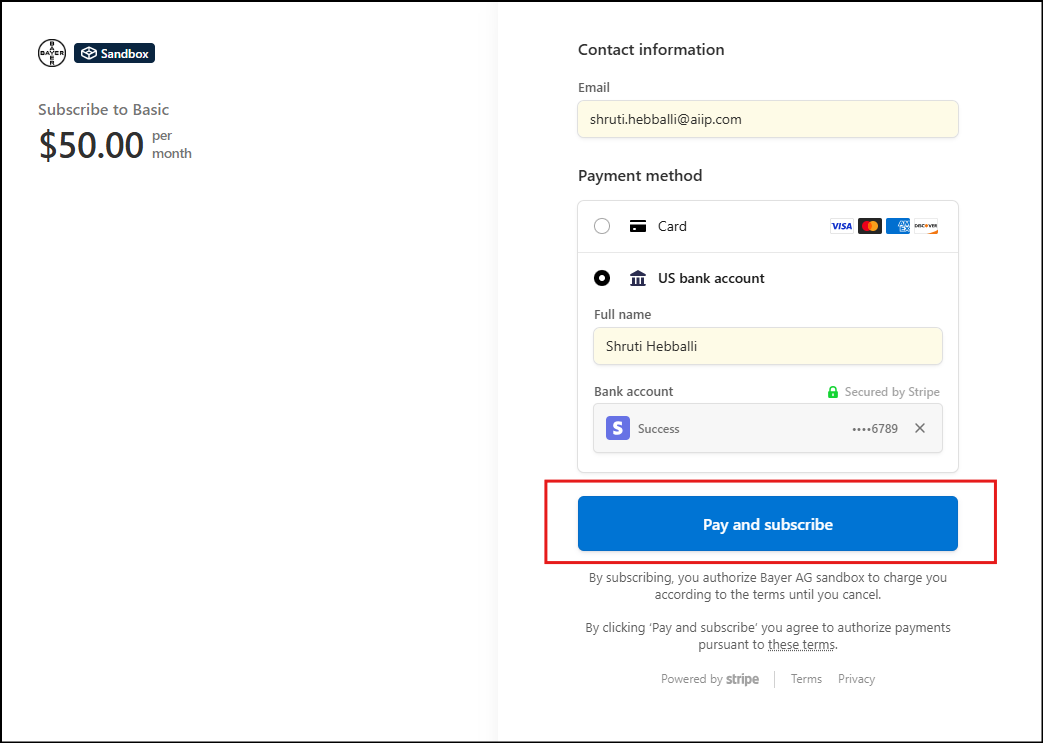
Stripe processes the payment and displays a confirmation screen upon success.