Logging In
Upon successful onboarding by the admin team, you will receive an email containing a temporary password and instructions to access the AI Innovation Platform. There is no separate sign-up process; your account is created during onboarding.
Our AI Innovation Platform is designed for seamless access, allowing you to log in using your own identity or organization's email address. This approach simplifies your experience by eliminating the need to remember multiple credentials.
Accessing Your Account
Once you navigate to the platform, you will land directly on the login screen.
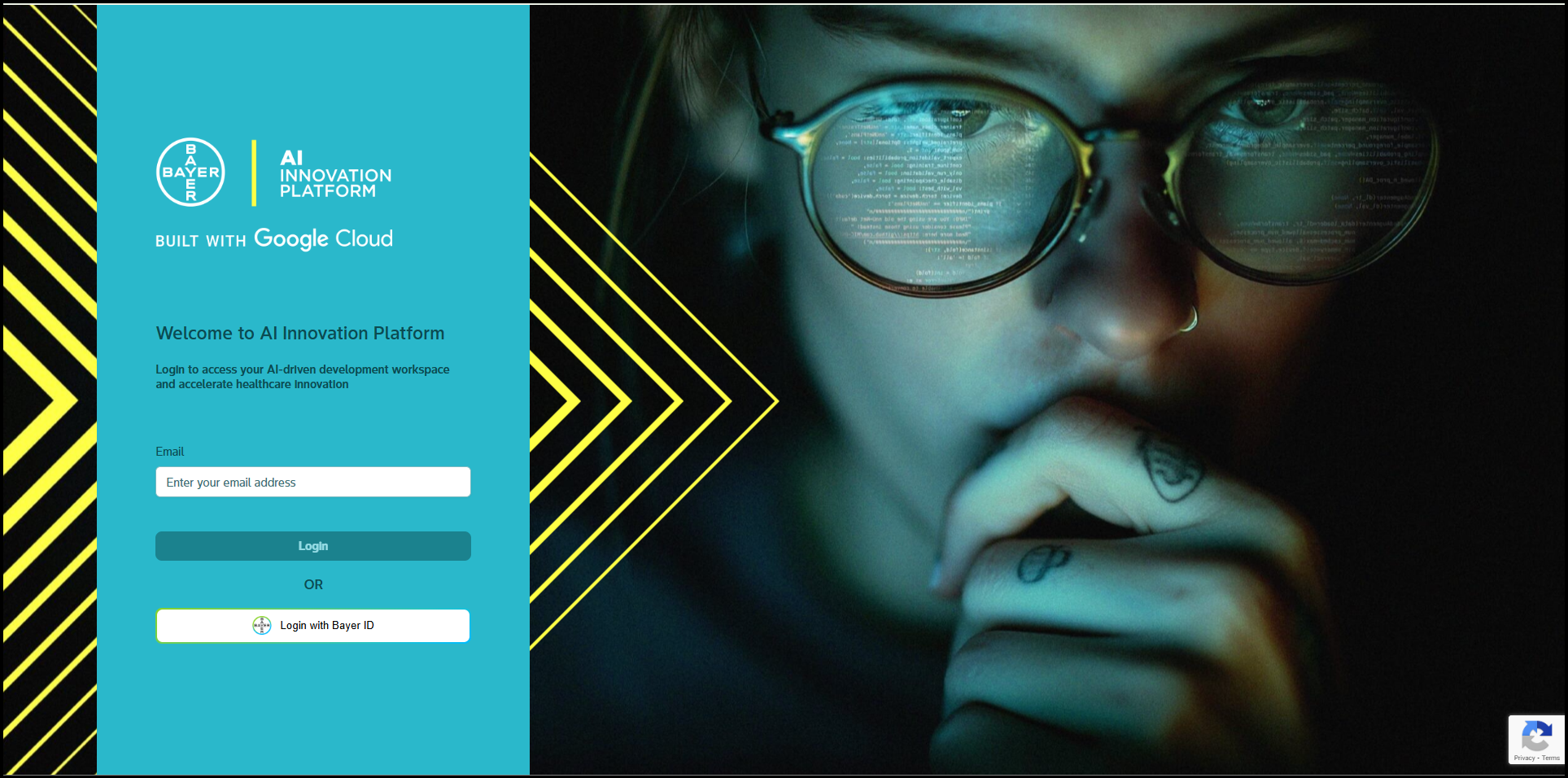
Here, you will have two primary options to access your account:
Sign in with Bayer ID
-
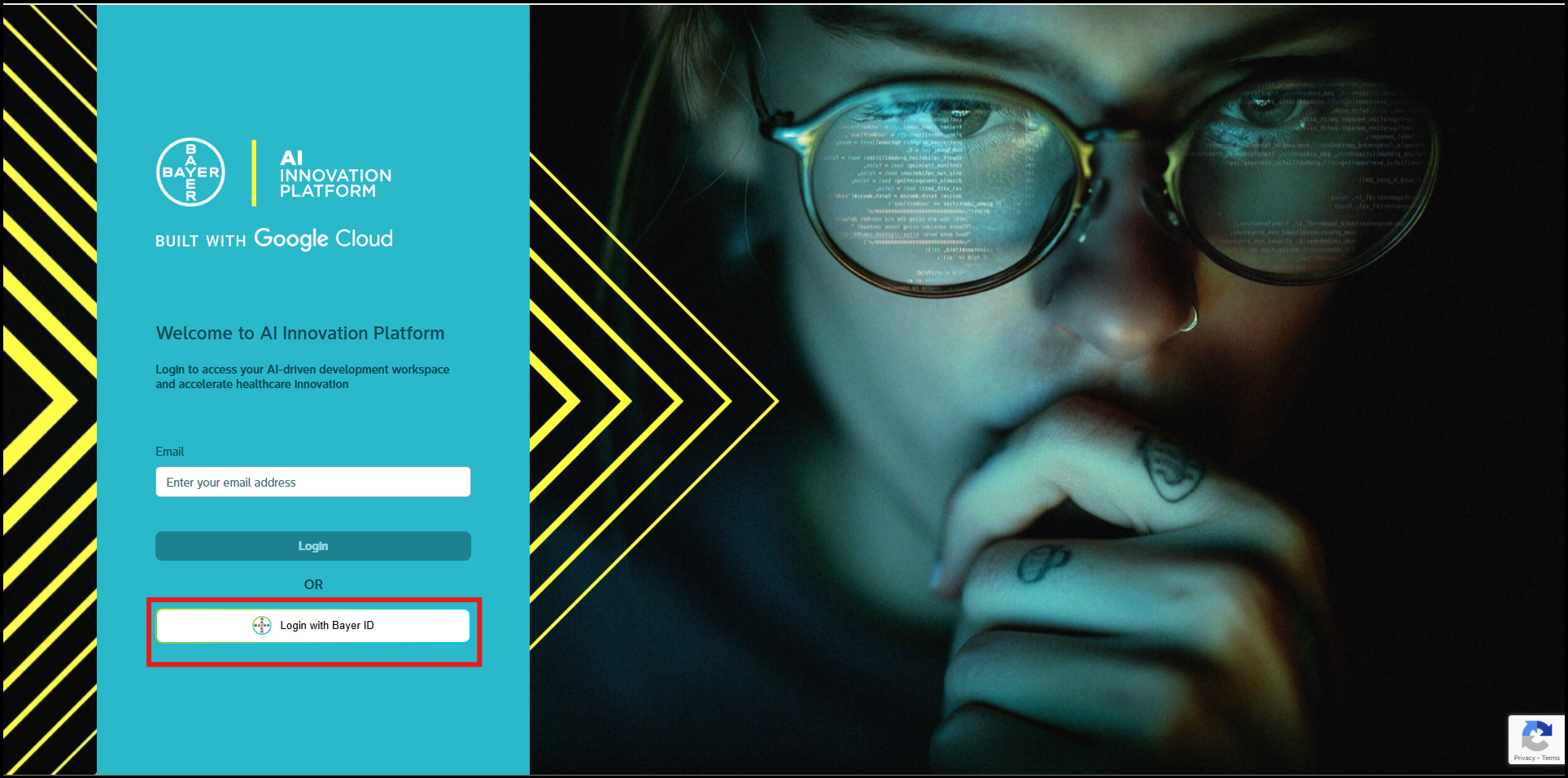
To streamline your login process, if you possess Bayer-provided credentials, you can directly click on the Login with Bayer ID button.
-
This option utilizes Single Sign-On (SSO) to authenticate your identity, granting you immediate and secure access to the platform.
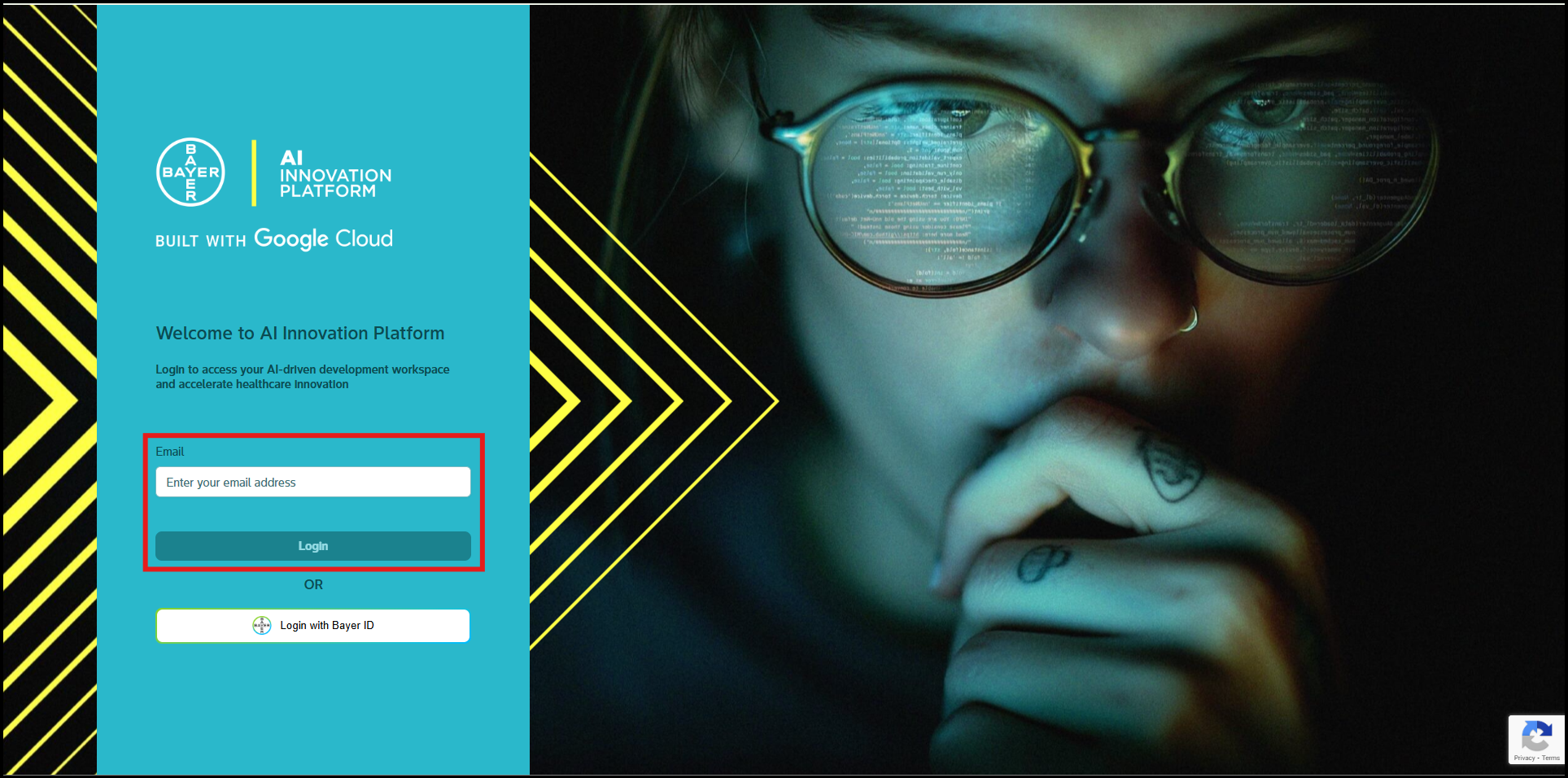
Enter Your Credentials
- For all other users, or if you prefer to use any other credentials, please enter your email address into the designated field and then click the "Login" button to proceed with the standard login flow.
Enhancing Security with Mobile Authenticator (MFA)
To significantly enhance your account security, you will be prompted to set up a Mobile Authenticator (Multi-Factor Authentication or MFA). This process links an authenticator app on your mobile device to your account, generating a secure, one-time code required for login.
Follow these steps to set up your Mobile Authenticator:
- Install an Authenticator App: Download and install a compatible authenticator application on your mobile device. Recommended options include FreeOTP, Microsoft Authenticator, or Google Authenticator.
- Add Account: Open your chosen authenticator app and select the option to "add account" or "scan QR code."
- Scan QR Code: Use your mobile device to scan the QR code displayed on your screen. This will link your account to the app.
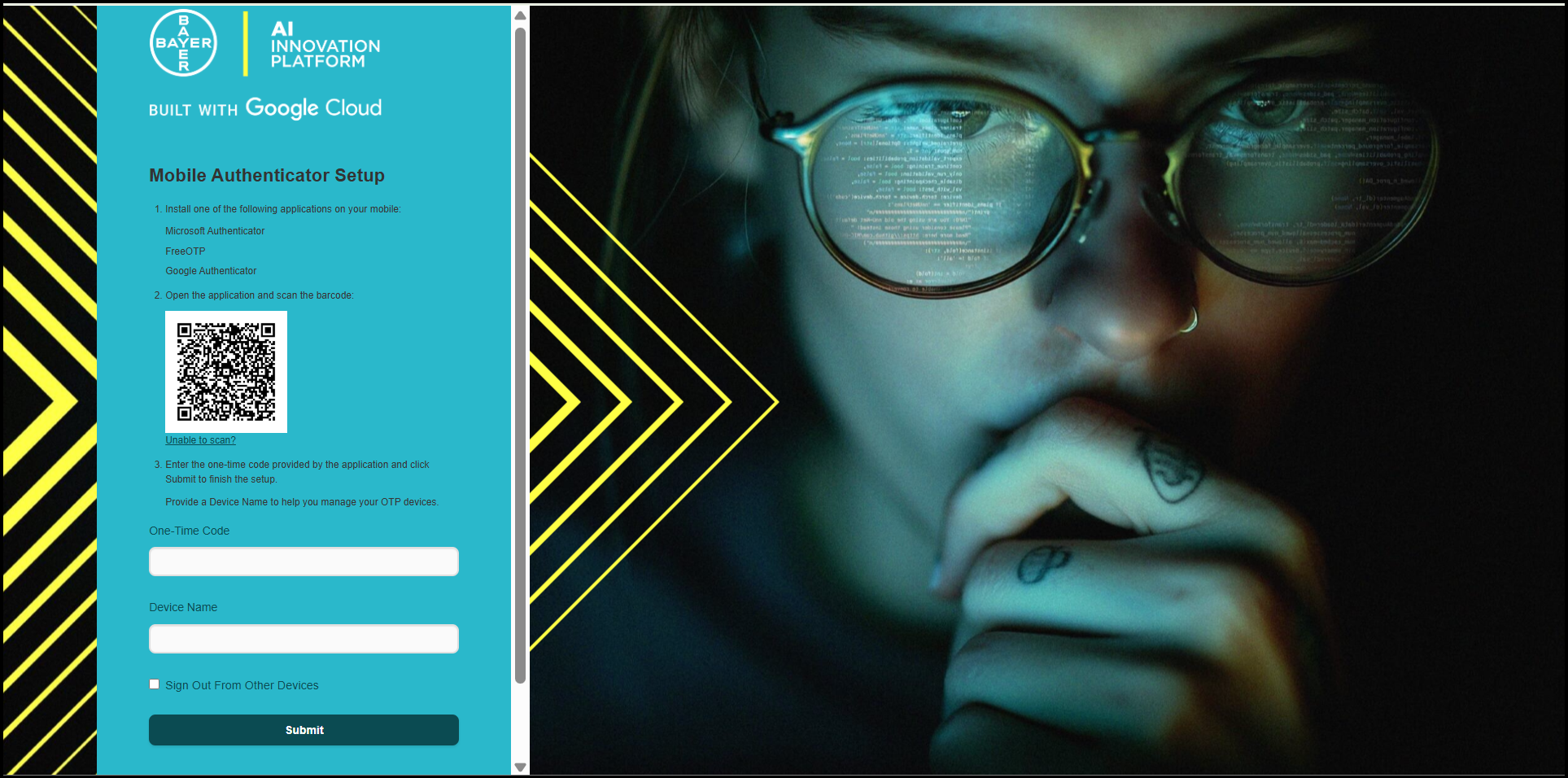
- Enter One-Time Code: Enter the 6-digit one-time code shown in your authenticator app into the platform's MFA screen.
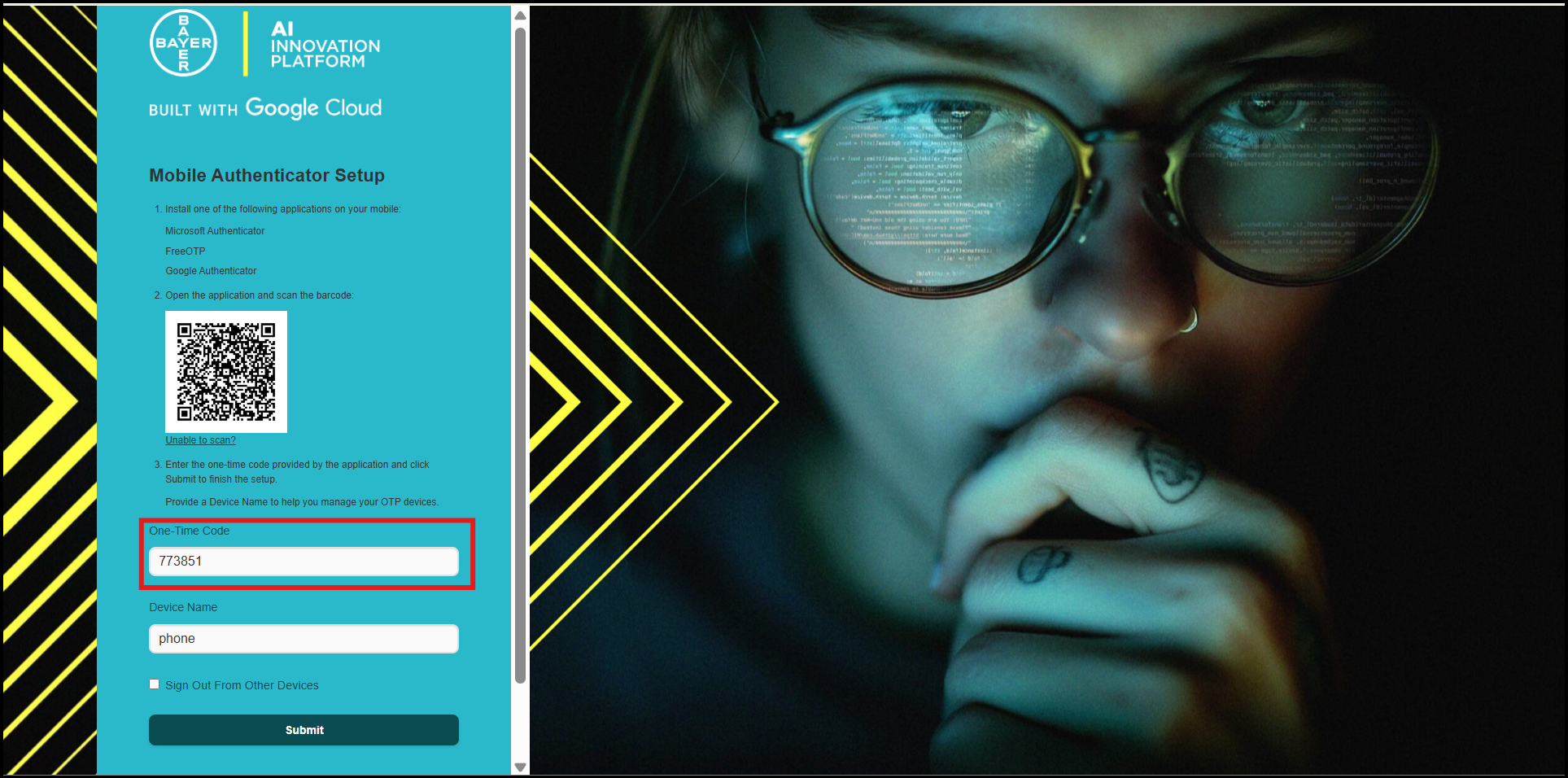
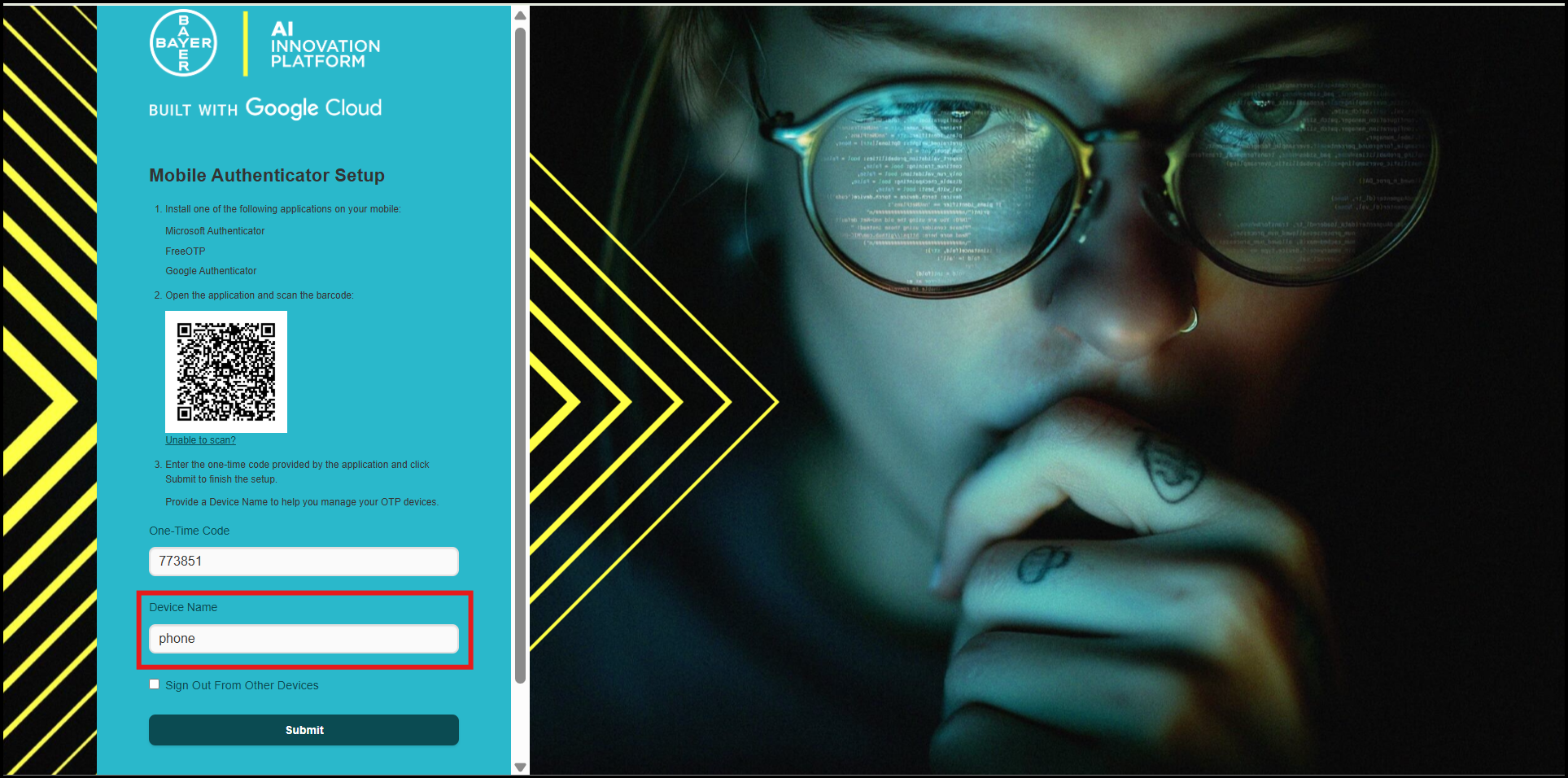
- Complete Setup: Optionally, you may enter a name for your mobile device (e.g., "My Work Phone") and then complete the two-factor authentication process.
Password Management
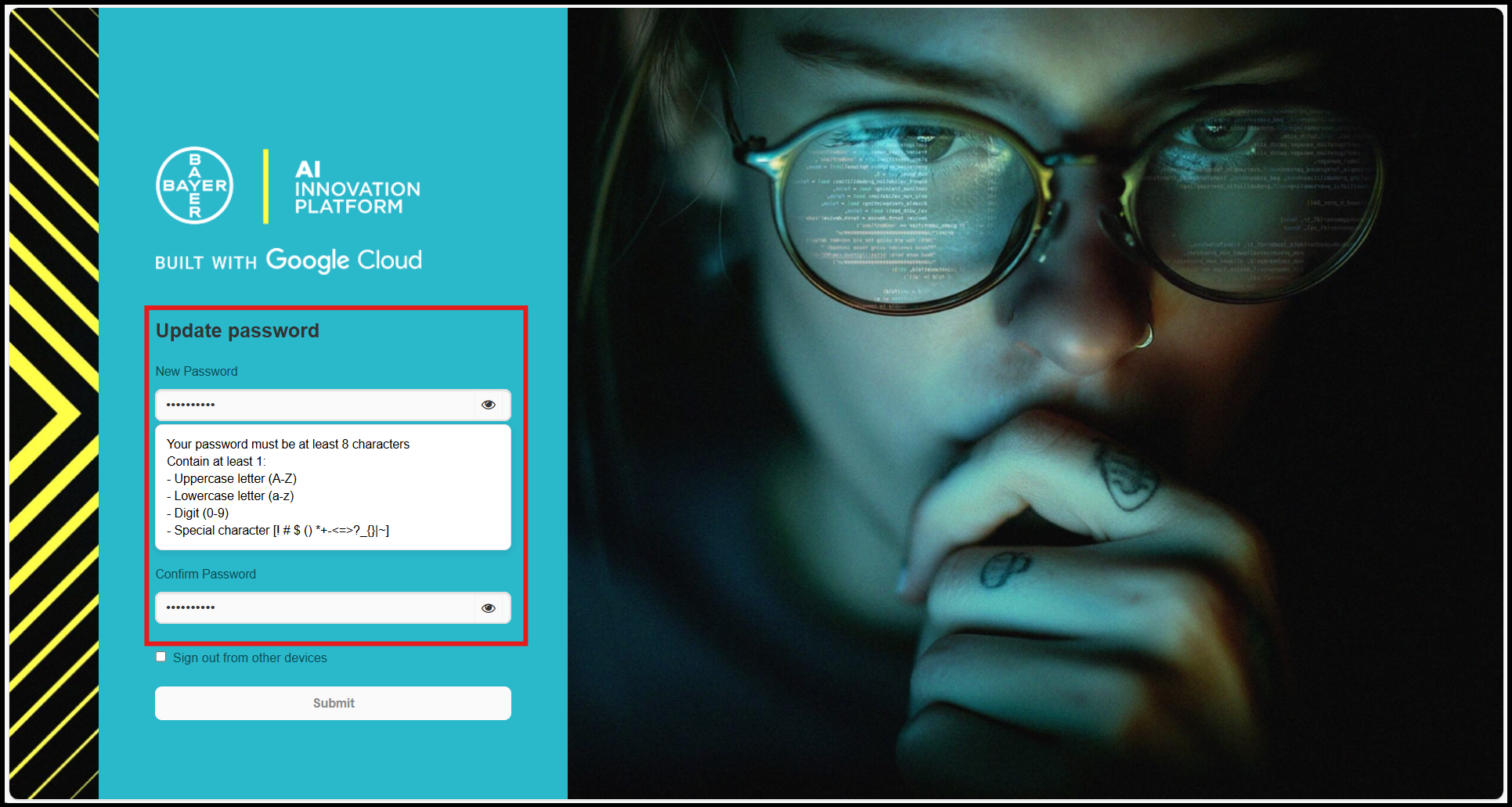
After completing your MFA setup, you will be prompted to create a new, secure password.
- Reset Your Password: Create a new password that adheres to our security requirements.
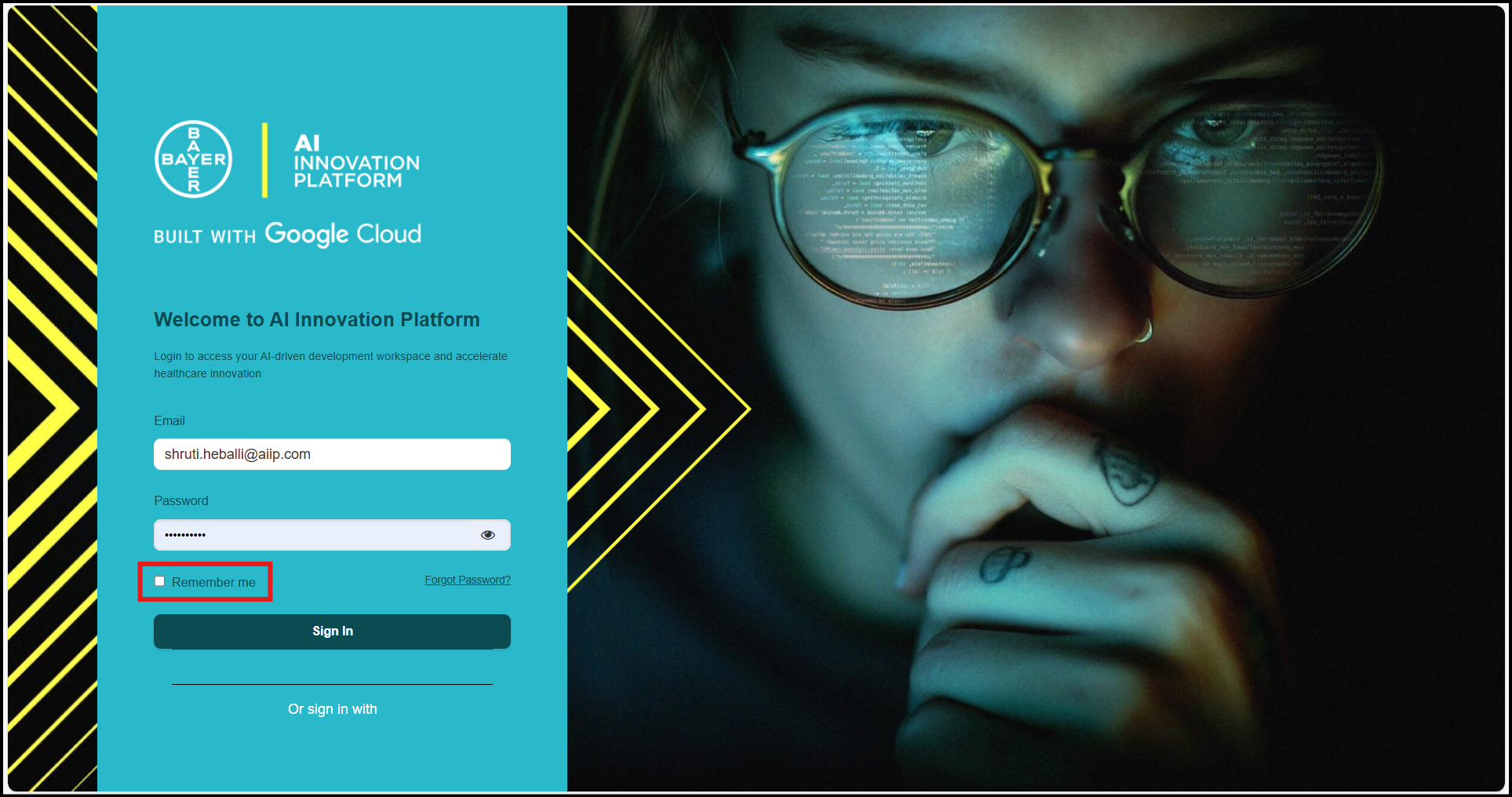
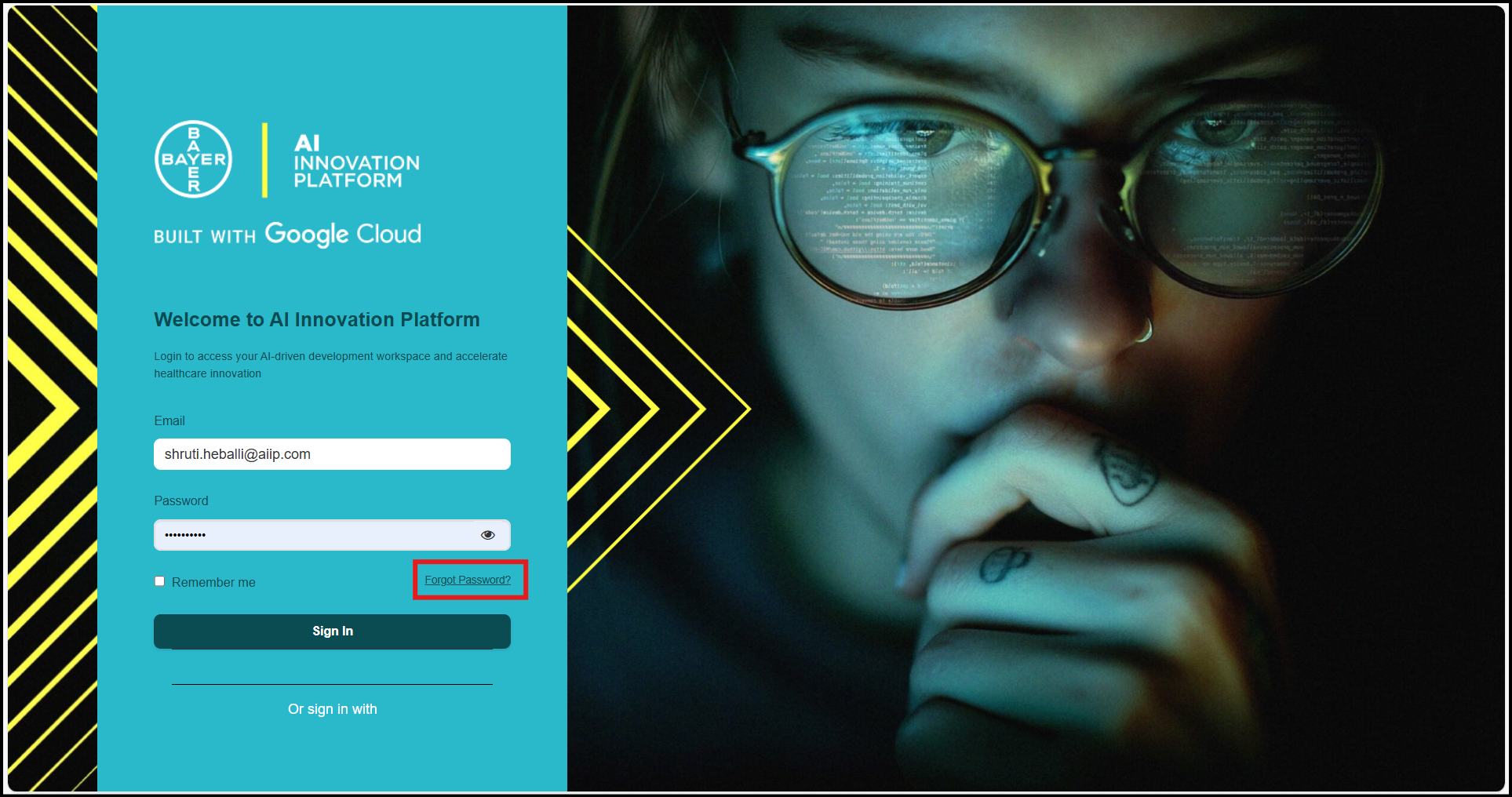
- Remember Password: For convenience, you can choose the "Remember Password" option on the login screen.
-
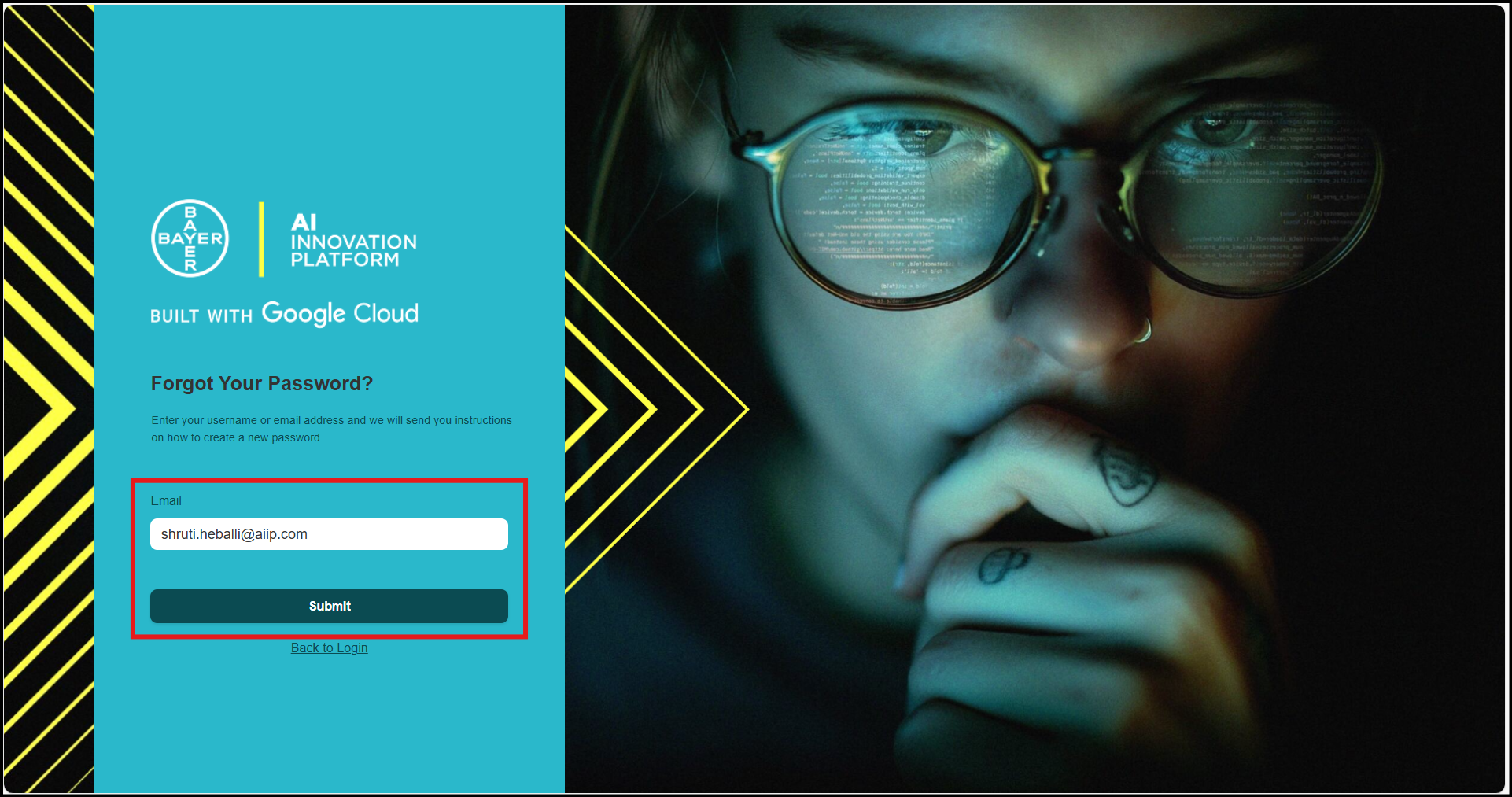
Forgot Password?: If you ever forget your password, simply click the "Forgot Password?" link on the sign-in page to initiate the reset process.
Note
Password Requirements:
- Must be at least 8 characters long.
- Must contain at least one character from each of the following categories:
- Uppercase letter (A–Z)
- Lowercase letter (a–z)
- Digit (0–9)
- Special character:
! # $ ( ) * + – < = > ? _ { } ] ~
Password Restrictions:
- Must not start with
!or?. - Must not include any of the following characters:
@ & % . ,or any other special characters not listed above. - Must not contain your first, middle, or last name, or your user ID.
- Must not be the same as any of your last 10 passwords.
Start the Platform Tour
Upon successful login, a welcome message will appear, offering a guided tour of the AI Innovation Platform. Click the "Next" button to begin the quick tour. This tour is designed to help you get started and make the most of your experience by highlighting key features and functionalities.
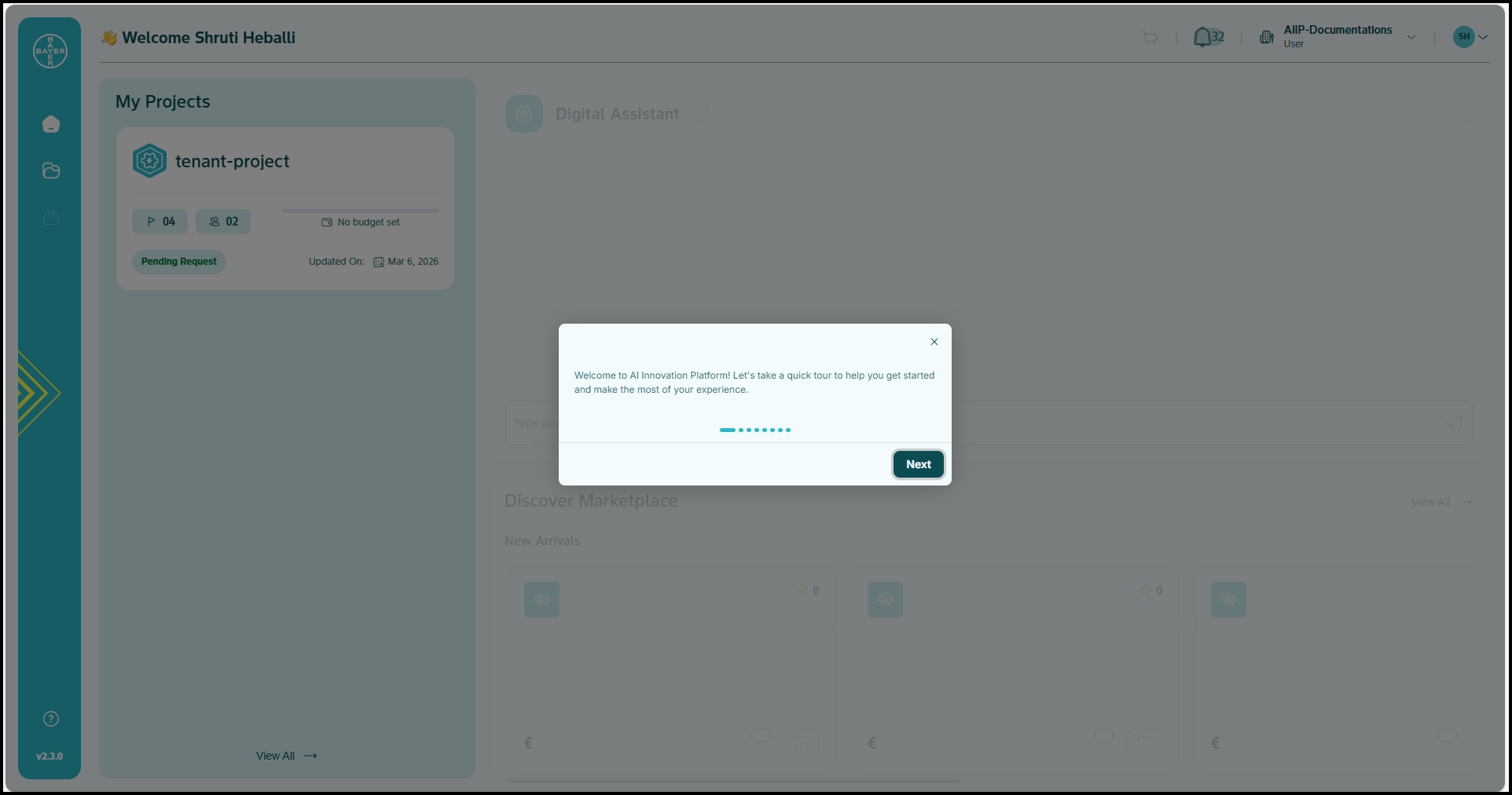
Revisit the Tour Anytime: Missed something or want a refresher? No problem! You can easily re-launch the guided tour whenever you need it. Simply access your Profile & Account Settings from the dropdown menu, and select the "Quick Tour" option to restart your walkthrough. It's always there to help you navigate with confidence.
Note
The quick tour feature provides an overview of the broader sections and landing pages within each module of the platform. For more specific information or detailed guidance on particular features, please refer to our comprehensive Help and Documentation resources.
Login Security & Troubleshooting
You benefit from multiple layers of account and data security, including industry-standard encryption for all login sessions. Automated systems monitor for suspicious login attempts, and timeout features protect your account during inactivity.
Troubleshooting Common Issues:
- Verify you are using the correct email address.
- Clear your browser cache or try a different browser.
- Use the "Forgot Password" link to reset your credentials.
- Contact the support team for persistent login problems.
Single Sign-On Benefits
You can use single sign-on (SSO) to:
- Access the platform with your existing tenant credentials.
- Eliminate the need to remember multiple passwords.
- Experience a streamlined authentication process.
- Maintain security standards set by your tenant.
For additional login assistance, contact the support team here.
Begin your interaction with the Bayer AI Innovation Platform!